Windows Connected but No Internet: How I Narrow Down the Failure
Windows Connected but No Internet
A Windows computer can show that it is connected to Wi-Fi or Ethernet and still have no usable Internet access.
That sounds contradictory, but it really is not. Windows may be connected to the local network while something farther along the path is failing.
When I troubleshoot this, I do not start by resetting everything.
I want to know where communication stops.
That is the whole point of the process.
IT Troubleshooting
For me, the first question is not:
What command fixes this?
It is:
How far can this computer actually communicate?
If I can answer that, the problem becomes much smaller.
A useful way to think about it is:
Computer → Local network → Gateway → Internet → DNS → Application
I test those stages in that order.
Step 1: Decide Whether This Is Really a Windows Problem
Before touching the computer, I want to know the scope.
If the user says:
“The Internet is down.”
I immediately want to know whether that means:
- This one computer cannot browse
- One website does not load
- Everyone in the office is offline
- Wi-Fi is down
- Ethernet works but Wi-Fi does not
- A VPN is connected but nothing else works
- The browser is failing while other applications still work
That matters.
If every machine in the building is offline, I probably should not spend twenty minutes resetting the network stack on one Windows PC.
If only one machine is affected, then I know I am probably dealing with something local.
That first distinction can save a lot of wasted time.
Step 2: Check What Windows Thinks Its Network Configuration Is
Open Command Prompt and run:
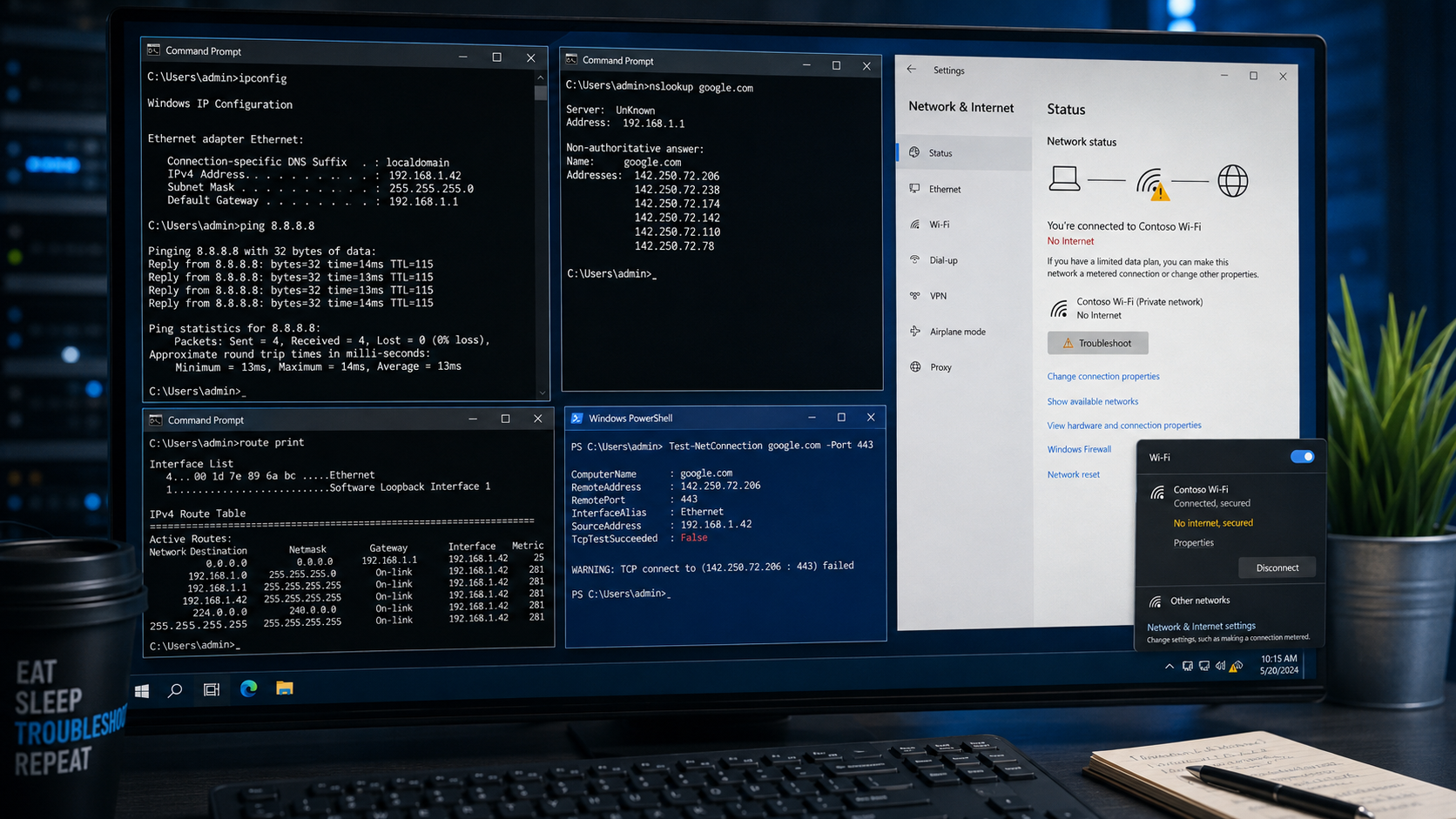
ipconfig
I am mainly looking for three things:
- IPv4 address
- Subnet mask
- Default gateway
A normal small-network configuration may look like:
IPv4 Address. . . . . . . . . . . : 192.168.1.42
Subnet Mask . . . . . . . . . . . : 255.255.255.0
Default Gateway . . . . . . . . . : 192.168.1.1
The exact numbers do not matter.
What matters is whether the machine received a sensible address for the network it is supposed to be on.
If I See 169.254.x.x
This immediately changes the troubleshooting direction.
A 169.254.x.x address usually means Windows did not successfully receive an address from DHCP.
At that point, I stop thinking about the Internet.
The machine has not even completed the local network setup correctly.
Now I am thinking about:
- DHCP
- Wi-Fi association
- Cable
- Switch port
- VLAN
- Adapter
- DHCP scope availability
That is a much better use of time than flushing DNS or reinstalling a browser.
Step 3: Test the Default Gateway
If the IP configuration looks normal, I test the gateway.
For example:
ping 192.168.1.1
I am not doing this because ping is magical.
I am doing it because the result answers a very specific question:
Can this computer communicate with another device on its own local network?
If the gateway responds, then I know:
- The adapter is functioning at some level
- The machine has a usable IP
- Local communication is working
- The problem is probably farther out
If the gateway does not respond, I do not jump to DNS.
DNS has nothing to do with reaching the gateway by IP address.
I stay local and check:
- Cable
- Wireless connection
- Adapter
- VLAN
- Switch
- Firewall
- Incorrect IP settings
This is where troubleshooting becomes much faster once you stop treating every possible cause as equally likely.
Step 4: Test Outside the Local Network
If the gateway works, the next question is:
Can the machine reach the Internet by IP address?
I might test:
ping 8.8.8.8
If that responds, I now know something very important:
The system can communicate beyond the local network.
That immediately tells me the problem is probably not basic routing.
If the gateway responds but the external IP does not, I start looking at things such as:
- Router
- Firewall
- ISP
- Upstream routing
- VPN routing
- Network policy
Again, I am not changing anything yet.
I am narrowing the failure.
Step 5: Separate Internet Connectivity From DNS
This is one of the most useful distinctions in basic network troubleshooting.
If this works:
ping 8.8.8.8
but this does not:
ping google.com
I immediately suspect DNS.
The machine can reach the Internet.
It just cannot translate a hostname into an IP address.
That is very different from “the Internet is down.”
Now I run:
nslookup google.comIf the lookup fails, I check the configured DNS servers:
ipconfig /all
At that point I want to know:
- Which DNS server is configured?
- Is it reachable?
- Is it supposed to be used on this network?
- Is it a domain controller?
- Is a VPN forcing a different DNS server?
- Is the machine still using an old static DNS entry?
That is the kind of detail that usually points toward the real cause.
Step 6: Flush DNS Only If DNS Is Actually the Problem
This is where I think a lot of troubleshooting guides get the order backward.
They tell you to run:
ipconfig /flushdns
almost immediately.
That command is fine, but I prefer to have a reason to use it.
If DNS resolution is failing or I suspect stale records, then yes:
ipconfig /flushdns
makes sense.
But if the computer cannot even reach the gateway, flushing DNS is just noise.
The command should fit the evidence.
Step 7: Check Whether the Machine Can Reach HTTPS
If DNS works and the machine can resolve websites, I test whether HTTPS is reachable.
In PowerShell:
Test-NetConnection google.com -Port 443
The important result is:
TcpTestSucceeded : True
If that succeeds, the underlying network path to HTTPS is working.
Now I start thinking more about the application layer:
- Browser
- Proxy
- Web filter
- Endpoint security
- VPN
- Browser extension
- Certificate problem
At this point, resetting TCP/IP is probably unnecessary.
Step 8: Check Proxy Settings
A bad proxy can make a healthy network look completely broken.
Go to:
Settings → Network & Internet → Proxy
If there is a manually configured proxy and the environment does not require one, that is suspicious.
This is especially worth checking if the machine:
- Used to belong to another environment
- Previously used a VPN
- Had security software installed
- Was configured for remote work
- Recently had browser or network settings changed
A stale proxy configuration can cause browsers to fail while basic network tests still succeed.
Step 9: Check VPN Software
VPN clients can make troubleshooting confusing because they may alter:
- Routes
- DNS
- Network adapters
- Firewall rules
- Default gateway behavior
If a VPN is connected, I disconnect it temporarily and test again.
Then I repeat:
ping 8.8.8.8
nslookup google.com
Test-NetConnection google.com -Port 443
If everything immediately starts working, the VPN has become the primary suspect.
That is far more useful than running random reset commands.
Step 10: Look at the Routing Table
If the machine behaves strangely even though IP and DNS look correct, I inspect the routes.
Run:
route print
I am mainly interested in the default route.
A normal default route usually looks something like:
0.0.0.0 0.0.0.0 192.168.1.1
If I see multiple competing default routes, unusual VPN routes, or something pointing traffic toward the wrong interface, I know the problem is probably routing-related.
This is especially useful on machines with:
- VPN clients
- Hyper-V
- VMware
- VirtualBox
- Docker
- Multiple adapters
- Static routes
Step 11: Check the Adapter Itself
If the network behavior still does not make sense, I inspect the adapter.
Go to:
Device Manager → Network adapters
I look for:
- Warning icons
- Disabled devices
- Driver problems
- Duplicate adapters
- Old virtual adapters
- Recently installed VPN adapters
I may also disable and re-enable the adapter from:
Settings → Network & Internet → Advanced network settings
That forces Windows to reinitialize the interface.
If that fixes the problem, I make a note of it, but I still want to understand why the adapter entered that state.
Step 12: Renew DHCP Only When the Address Looks Wrong
If the machine has a bad address or I suspect a lease problem:
ipconfig /release
followed by:
ipconfig /renew
makes sense.
After that, I run:
ipconfig
again and verify that:
- The address is valid
- The gateway is correct
- The DNS information looks right
If renewal fails, that gives me useful evidence.
The problem is probably not a browser issue.
It is now much more likely to be:
- DHCP
- Network access
- Wi-Fi
- VLAN
- Adapter
- Switch
Step 13: Reset Winsock Only After the Basic Tests Make Sense
I treat:
netsh winsock reset
as a later troubleshooting step.
It can help with certain broken network-stack conditions, but I do not like using it first.
Why?
Because if I reset everything before I understand the failure, I may fix the symptom and learn nothing.
If I have already proven that:
- IP configuration is valid
- Gateway works
- Internet IP access is inconsistent
- DNS is not the issue
- Proxy and VPN are not the issue
then a Winsock reset becomes more reasonable.
After running it, reboot the machine.
Step 14: Reset TCP/IP If the Stack Still Looks Corrupt
The same idea applies to:
netsh int ip reset
This is a broader change.
I reserve it for cases where the network stack itself appears to be behaving incorrectly after the simpler layers have already been tested.
Then reboot.
The point is not to avoid these commands.
The point is to use them when the evidence points in that direction.
The Decision Tree I Actually Care About
This is the part I find most useful.
If the machine has a 169.254 address
Think:
DHCP or local network
If the machine has a valid IP but cannot reach the gateway
Think:
Adapter, Wi-Fi, cable, switch, VLAN, or local firewall
If the gateway works but an external IP does not
Think:
Router, firewall, ISP, or routing
If an external IP works but a hostname does not
Think:
DNS
If DNS works and port 443 works
Think:
Browser, proxy, VPN, web filtering, or application issue
If only this machine is affected
Think:
Local Windows configuration
If everyone is affected
Think:
Infrastructure
That is the troubleshooting process in one page.
Why I Prefer This Approach
I have never been a fan of troubleshooting by shotgun.
Running ten commands at once may fix the problem, but it also destroys the trail of evidence.
I would rather know:
- What worked
- What failed
- Where communication stopped
- What changed the result
That makes the fix repeatable.
It also gives me something useful to document if the same problem comes back six months later.
Quick Reference
Start here:
ipconfig
Then test the gateway:
ping <default-gateway>
Then test an external IP:
ping 8.8.8.8
Then test DNS:
nslookup google.com
Then test HTTPS:
Test-NetConnection google.com -Port 443
Only after that would I consider:
ipconfig /flushdns
ipconfig /release
ipconfig /renew
netsh winsock reset
netsh int ip reset
Final Thoughts
A Windows computer showing “connected” while the Internet does not work is not really one problem.
It is a symptom.
The useful part of troubleshooting is figuring out which layer failed.
I start with the local machine, move to the gateway, test the Internet by IP, test DNS, and then move upward toward the browser and application layer.
Once you know where the failure begins, most of the mystery disappears.