
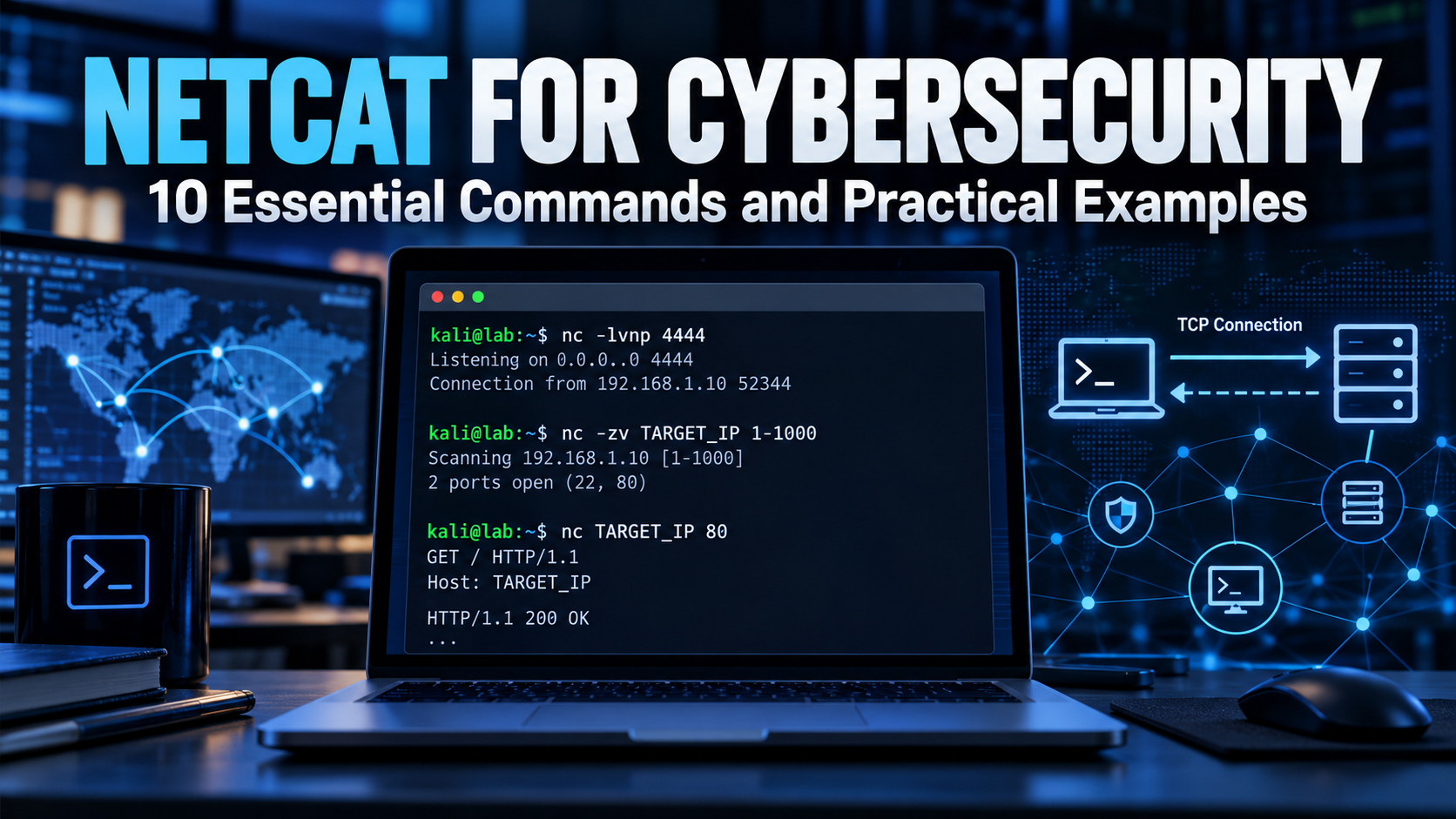
Netcat for Cybersecurity: 10 Essential Commands and Practical Examples
Netcat is one of those cybersecurity tools that does not look particularly impressive until you realize how many different jobs it can perform.
Often described as the Swiss Army knife of networking, Netcat provides a simple way to create TCP and UDP connections directly from the command line. Security professionals can use it to test ports, interact with network services, transfer data, troubleshoot connections, create listeners, and investigate how applications communicate across a network.
Learning Netcat for cybersecurity is especially useful because it helps build an understanding of networking at a much lower level than graphical tools.
Instead of clicking a button and letting an application handle the connection, you can create the connection yourself and observe exactly what happens.
Important: Only use Netcat against systems you own or have explicit authorization to test. The examples in this guide are intended for personal labs, CTF environments, TryHackMe rooms, and authorized security testing.
What Is Netcat?
Netcat is a command-line networking utility commonly invoked using the nc command.
At its simplest, Netcat reads and writes data across network connections.
The basic syntax looks like this:
nc [options] host port
For example:
nc 192.168.56.20 80
This attempts to establish a connection to TCP port 80 on the specified host.
That simplicity is what makes Netcat so useful.
Rather than being designed for one specific security task, Netcat can act as a basic network client or listener and can therefore be incorporated into many different troubleshooting and security workflows.
Why Netcat Matters in Cybersecurity
Netcat is valuable because it allows you to interact directly with network services.
Some common uses include:
- Testing whether a TCP or UDP port is reachable
- Connecting manually to network services
- Creating TCP or UDP listeners
- Performing basic port scanning
- Grabbing service banners
- Testing firewall rules
- Troubleshooting network applications
- Transferring files inside controlled environments
- Sending raw protocol requests
- Creating connections between two systems in a security lab
You will frequently encounter Netcat while working with Kali Linux, penetration-testing labs, CTF challenges, and platforms such as TryHackMe.
1. Test Whether a Port Is Open
One of the simplest Netcat commands tests whether a remote TCP port accepts connections.
nc -vz 192.168.56.20 22
Command Breakdown
| Option | Purpose |
|---|---|
nc | Starts Netcat |
-v | Enables verbose output |
-z | Uses zero-I/O scanning mode |
192.168.56.20 | Target system |
22 | Target port |
The -z option tells Netcat to check the connection without starting a normal interactive session.
This makes it useful for quickly determining whether a particular service is reachable.
For example:
nc -vz 192.168.56.20 443
can help determine whether an HTTPS service is accepting TCP connections.
This does not prove that the application itself is functioning correctly, but it confirms that a TCP connection can be established.
2. Check Multiple Ports
Netcat can also check a range of ports.
nc -vz 192.168.56.20 20-25
This checks TCP ports 20 through 25.
You could also examine a larger range:
nc -vz 192.168.56.20 1-1000
While this works for basic testing, Netcat is not a replacement for Nmap.
Nmap provides significantly more functionality for network discovery, service detection, operating-system fingerprinting, scripting, and structured port scanning.
Think of Netcat as a quick connectivity tool and Nmap as a dedicated network scanner.
3. Connect Directly to a Service
You can use Netcat as a basic TCP client.
nc 192.168.56.20 80
If a web server is listening on port 80, Netcat establishes a raw TCP connection to it.
You can then manually enter an HTTP request:
GET / HTTP/1.1
Host: 192.168.56.20
Press Enter twice after the Host header.
If the web server accepts the request, it should return an HTTP response.
This is a great exercise because it demonstrates that HTTP is ultimately data being transmitted over a network connection.
4. Grab a Service Banner
Some network services identify themselves immediately after a connection is established.
For example:
nc 192.168.56.20 22
An SSH server may respond with something similar to:
SSH-2.0-OpenSSH_x.x
Banner information can help identify the service running on a port and sometimes provide additional information about the software.
During penetration testing, banner grabbing is part of the enumeration process.
Note: A banner should never be treated as definitive proof of the exact software version. Administrators can modify banners, proxies may sit between you and the application, and some services intentionally hide version information.
5. Create a Netcat Listener
Netcat can listen for incoming connections.
A common command is:
nc -lvnp 4444
Command Breakdown
| Option | Purpose |
|---|---|
-l | Listen mode |
-v | Verbose output |
-n | Disable DNS resolution |
-p 4444 | Listen on port 4444 |
The terminal will wait for another system to connect.
From another machine in your lab, connect with:
nc 192.168.56.10 4444
Replace 192.168.56.10 with the IP address of the machine running the listener.
Once connected, text typed into one terminal can be transmitted to the other.
This is one of the easiest ways to demonstrate how TCP client/server communication works.
6. Use Netcat as a Simple Chat Connection
With the listener running:
nc -lvnp 4444
connect from another machine:
nc 192.168.56.10 4444
Now type:
Hello from the client
The text appears on the listening system.
Typing:
Connection received
on the listener sends the message back.
Although this is extremely basic, it demonstrates an important networking concept:
One machine listens while another initiates the connection.
That same client/listener relationship appears throughout networking and cybersecurity.
7. Transfer a File with Netcat
Netcat can also move data between systems.
Suppose the receiving system listens on port 4444 and redirects incoming data into a file:
nc -l 4444 > received.txt
From another system in your lab:
nc 192.168.56.10 4444 < example.txt
The contents of example.txt are transmitted across the connection and written into:
received.txt
This is useful for understanding how shell redirection and network connections can work together.
However, Netcat does not encrypt the transferred data.
For real administrative file transfers, use a secure protocol such as:
scp
or:
sftp
Netcat file transfers are better suited to isolated labs and troubleshooting exercises.
8. Test UDP Connectivity
Netcat supports UDP using the -u option.
For example, create a UDP listener:
nc -u -l 4444
Then connect from another machine:
nc -u 192.168.56.10 4444
UDP behaves differently from TCP because it is connectionless.
There is no TCP-style three-way handshake establishing a session before the data is transmitted.
This makes Netcat useful for experimenting with the differences between TCP and UDP.
9. Add a Connection Timeout
Sometimes you do not want Netcat waiting indefinitely for a connection.
The -w option can specify a timeout.
nc -vz -w 3 192.168.56.20 443
Here:
-w 3
sets a three-second timeout.
This can make connectivity testing faster when working with hosts or ports that do not respond.
10. Use Netcat During Troubleshooting
Netcat is not exclusively a penetration-testing tool.
System administrators and network engineers can use it to answer a very common question:
Can this machine actually reach that service?
Suppose an application server should connect to a database server on TCP port 3306.
You could test the network path with:
nc -vz 192.168.56.30 3306
If the connection succeeds, you know that something is accepting connections on that address and port.
If it fails, possible causes include:
- The service is stopped
- The service is listening on another interface
- A firewall is blocking the connection
- The port number is incorrect
- Routing is preventing communication
- The destination system is unreachable
This makes Netcat extremely useful outside offensive security.
Netcat vs. Nmap
Netcat and Nmap overlap in a few areas, but they serve different purposes.
| Feature | Netcat | Nmap |
|---|---|---|
| Test individual ports | Yes | Yes |
| Scan port ranges | Basic | Advanced |
| Service detection | Manual/basic | Advanced |
| OS detection | No | Yes |
| NSE scripting | No | Yes |
| Create listeners | Yes | No |
| Raw service interaction | Yes | Limited |
| Transfer data | Yes | Not its primary purpose |
| Network troubleshooting | Excellent | Excellent |
A common workflow is to discover services using Nmap and then investigate an interesting service manually using Netcat.
For example:
nmap -sV 192.168.56.20
might identify an unusual TCP service.
You could then connect directly:
nc 192.168.56.20 31337
and observe how the service responds.
Common Netcat Options
| Option | Description |
|---|---|
-l | Listen for incoming connections |
-v | Verbose output |
-n | Disable DNS resolution |
-p | Specify a local port where supported |
-u | Use UDP instead of TCP |
-z | Zero-I/O mode for port checking |
-w | Set a timeout |
Compatibility Note: Several Netcat implementations exist, including traditional Netcat, OpenBSD Netcat, and Ncat. Available options and behavior can differ between versions. Always check the installed version’s help output before assuming a particular switch is supported.
You can usually view the available options with:
nc -h
Netcat, Ncat, and Different Implementations
One source of confusion for new users is that nc does not necessarily refer to exactly the same program on every operating system.
Depending on the Linux distribution or environment, you may encounter different Netcat implementations.
You may also encounter Ncat, which is maintained as part of the Nmap project.
Its command is:
ncat
Many basic concepts are similar, but options can differ.
When following tutorials, always verify whether the author is using:
nc
or:
ncat
That small difference can explain why a command works in one environment but fails in another.
Security Considerations
Netcat’s simplicity is also what makes it potentially dangerous when used carelessly.
Traffic transmitted through a normal Netcat connection is not inherently encrypted. Credentials, files, messages, or other sensitive information could potentially be observed by someone capable of capturing the network traffic.
Avoid using basic Netcat connections to transmit sensitive information across untrusted networks.
For administrative tasks, prefer secure alternatives such as:
ssh
scp
sftp
Netcat is best treated as a networking and troubleshooting utility rather than a secure remote-administration protocol.
Building Netcat Skills in a Home Lab
The best way to learn Netcat is to use two virtual machines inside an isolated cybersecurity lab.
A simple setup might include:
- Kali Linux
- Metasploitable 2
- An isolated VMware virtual network
Start a listener on one machine:
nc -lvnp 4444
Connect from the other:
nc <LAB-IP> 4444
Then experiment with sending text, checking ports, examining service banners, and observing the connections with tools such as Wireshark.
This turns Netcat from a collection of commands into a practical lesson in how network communication actually works.
Useful Netcat Command Cheat Sheet
| Task | Command |
|---|---|
| Connect to TCP port | nc <IP> <PORT> |
| Test a port | nc -vz <IP> <PORT> |
| Test port range | nc -vz <IP> 1-1000 |
| TCP listener | nc -lvnp <PORT> |
| UDP listener | nc -u -l <PORT> |
| UDP connection | nc -u <IP> <PORT> |
| Set timeout | nc -vz -w 3 <IP> <PORT> |
| Receive file | nc -l <PORT> > file.txt |
| Send file | nc <IP> <PORT> < file.txt |
| Display help | nc -h |
Common Mistakes
One of the most common Netcat mistakes is assuming every implementation supports exactly the same command-line options.
Another is forgetting which system should be listening and which system should initiate the connection.
Remember:
Listener:
nc -lvnp 4444
Connecting machine:
nc <LISTENER-IP> 4444
Other common problems include:
- Host firewall blocking the listening port
- Using the wrong IP address
- Listening on the wrong network interface
- Mixing TCP and UDP
- Attempting to connect before the listener is running
- Forgetting that Netcat traffic is normally unencrypted
When troubleshooting, verify each part of the connection separately.
Final Thoughts
Learning Netcat for cybersecurity provides more than another command-line tool to memorize.
Netcat helps demonstrate how network connections actually work.
Creating listeners teaches the client/server relationship. Connecting directly to HTTP services demonstrates how application protocols operate over TCP. Banner grabbing introduces service enumeration. Port testing demonstrates how security professionals troubleshoot network paths.
Those concepts appear repeatedly in system administration, penetration testing, CTF challenges, and defensive security.
Once you understand Netcat, many more complicated networking tools become easier to understand because you already understand what is happening underneath them.
Key Takeaways
- Main lesson: Netcat is a simple but powerful utility for creating and testing network connections.
- Important commands:
nc -vz,nc -lvnp,nc -u, andnc -w. - Skills practiced: TCP connections, UDP communication, listeners, port testing, banner grabbing, file transfers, and network troubleshooting.
- Defensive considerations: Netcat traffic is not inherently encrypted, and unexpected Netcat listeners can indicate unauthorized activity.
- Best practice: Practice Netcat inside an isolated lab and use encrypted protocols such as SSH, SCP, or SFTP for sensitive administrative traffic.
References
For additional technical information, see the official Nmap Ncat documentation and the manual page installed with your system:
man nc
or:
nc -h