Building a Reliable Windows Kiosk Setup with Auto-Login, Auto-Launch, Scheduled Reboots, and Service Hardening
Windows kiosk setup does not always mean locking a browser to a single webpage.
In many environments, a kiosk is simply a dedicated Windows workstation with one purpose. It may display a monitoring dashboard, run a line-of-business application, show status information, present camera feeds, or provide a fixed interface that needs to remain available all day.
The goal is usually the same:
- Power on
- Log in automatically
- Launch the required application
- Stay stable
- Recover cleanly after a reboot
- Avoid unnecessary background activity
- Require as little user interaction as possible
I recently rebuilt one of these systems and decided to clean up the entire process instead of relying on a collection of manual settings.
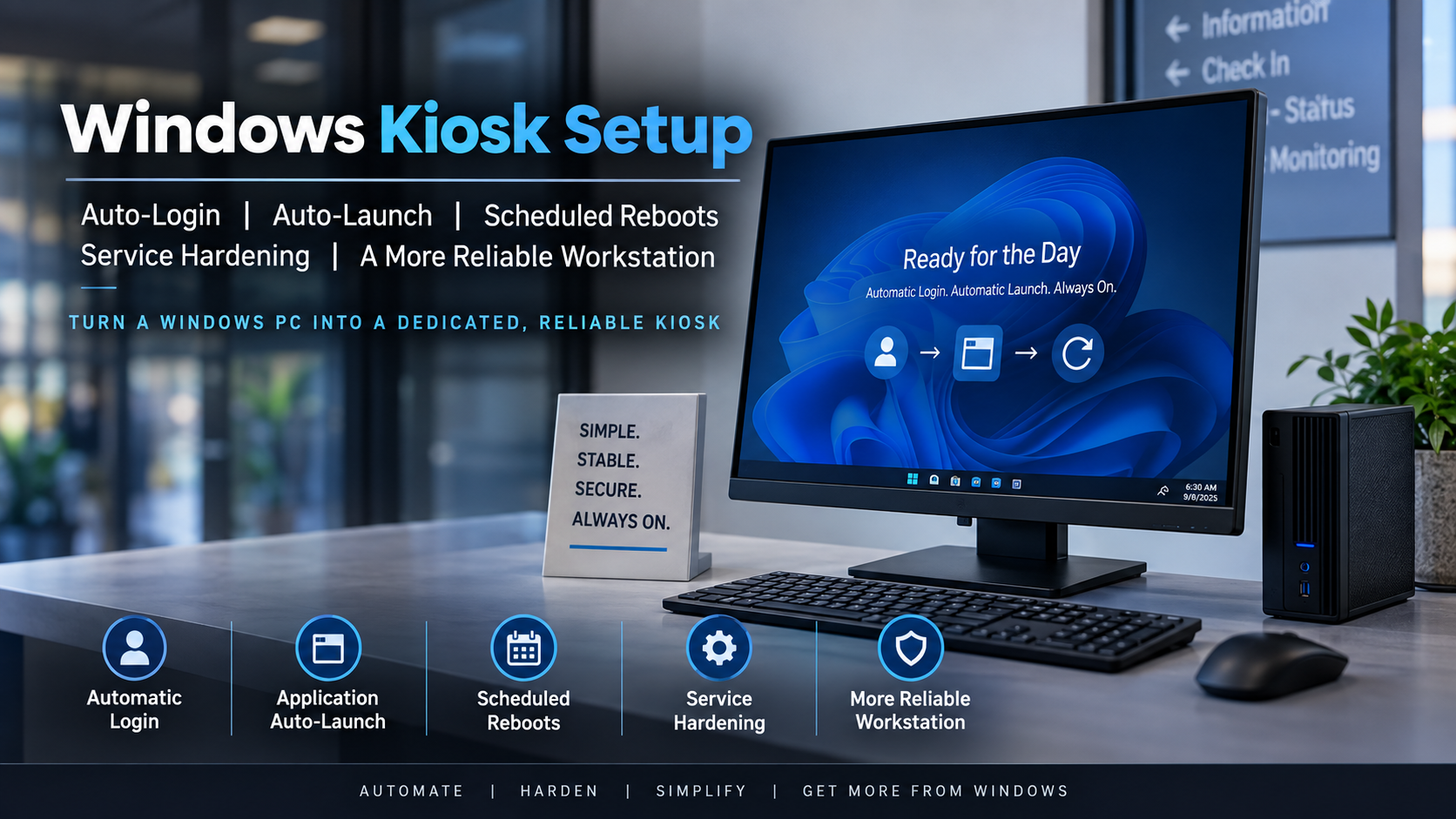
The result is a Windows kiosk setup that automatically logs in, launches its assigned application through Task Scheduler, reboots itself on a daily schedule, and uses selective service hardening to reduce unnecessary background processes.
The end goal is simple: make the workstation behave less like a general-purpose PC and more like an appliance.
The Windows Kiosk Setup
The design is intentionally straightforward.
The expected workflow looks like this:
Windows boots

↓

A dedicated local kiosk account logs in automatically

↓

Task Scheduler launches the required application

↓

The workstation remains active throughout the day

↓

Windows performs a scheduled reboot early each morning

↓

The process starts again
For a fixed-purpose workstation, this provides a predictable operating state without requiring someone to manually log in or restart software after every reboot.
Step 1: Use a Dedicated Kiosk Account
The first step is to use a dedicated local account for the kiosk session.
For example:
kiosk
That account should exist only to run the kiosk.
Avoid using:
- A domain administrator account
- A local administrator account
- A personal user account
- An account with unnecessary access to network resources
A dedicated account gives you a cleaner security boundary and makes troubleshooting easier.
If the application does not require administrative permissions, the kiosk account should remain a standard user.
Step 2: Configure Automatic Login
For automatic login, Microsoft Sysinternals Autologon is a convenient option.
Once configured, Windows signs in automatically with the dedicated kiosk account after startup.
You can verify the active Winlogon settings with PowerShell:
Get-ItemProperty 'HKLM:\SOFTWARE\Microsoft\Windows NT\CurrentVersion\Winlogon' |
Select-Object AutoAdminLogon, DefaultUserName, DefaultDomainName
A typical result might look like this:
AutoAdminLogon : 1
DefaultUserName : kiosk
DefaultDomainName : .
The period indicates that the account is local to the machine.
One important rule:
Do not publish or expose any stored password value if one exists.
Step 3: Launch the Application at Logon
There are several ways to start an application automatically in Windows:
- Startup folder
- Registry Run key
- Group Policy
- Task Scheduler
For this Windows kiosk setup, I prefer Task Scheduler.
Task Scheduler gives you better control over:
- Which user runs the application
- Privilege level
- Trigger conditions
- Manual execution
- Troubleshooting
A generic example looks like this:
schtasks /Create /TN "Kiosk\Launch Application" /SC ONLOGON /RU "kiosk" /RL HIGHEST ^
/TR ""C:\Program Files\ExampleApp\ExampleApp.exe"" /F
This creates a scheduled task called:
Kiosk\Launch Application
The task runs whenever the kiosk user logs in.
You can verify it with:
schtasks /Query /TN "Kiosk\Launch Application" /V /FO LISTYou can also test the task manually without rebooting:
schtasks /Run /TN "Kiosk\Launch Application"That is useful when confirming the executable path and verifying that the application opens in the correct user session.
Step 4: Add a Scheduled Daily Reboot
Long-running Windows systems can accumulate small problems over time.
Examples include:
- Memory leaks
- Hung GUI processes
- Stale network sessions
- Application instability
- Driver state issues
- Resource buildup
For a kiosk that does not need to run continuously overnight, a scheduled reboot can be a simple way to return the workstation to a known-good state every day.
In this example, the machine reboots every morning at 6:30 AM.
The scheduled task can be created with:
schtasks /Create /TN "Kiosk\Daily Reboot" /SC DAILY /ST 06:30 /RU SYSTEM /RL HIGHEST /TR "shutdown.exe /r /f /t 30" /FThis task:
- Runs every day
- Executes as SYSTEM
- Reboots Windows
- Forces open applications to close
- Provides a 30-second countdown
Because the kiosk account is configured for automatic login, the machine should return to its normal operating state after reboot.
The complete cycle becomes:
6:30 AM reboot

↓

Windows starts

↓

Kiosk account logs in automatically

↓

Application launch task runs

↓

The workstation is ready for the day
You can verify the reboot task with:
schtasks /Query /TN "Kiosk\Daily Reboot" /V /FO LISTUseful fields include:
- Last Run Time
- Last Result
- Next Run Time
- Run As User
A successful scheduled task generally reports:
Last Result: 0
Step 5: Back Up the Existing Service Configuration
Before disabling Windows services, create a baseline.
This is one of the most important parts of the process.
Service hardening should be reversible.
A simple service export can be created with:
schtasks /Query /TN "Kiosk\Launch Application" /V /FO LISTThat gives you a reference point before changing anything.
For a more complete hardening process, I prefer using a script that also creates:
- A before-state service export
- An after-state service export
- A transcript log
- An automatically generated rollback script
That makes the changes easier to audit and much easier to undo if something unexpected breaks.
Step 6: Disable Unnecessary Windows Services
A dedicated kiosk usually does not need everything that a normal Windows workstation uses.
Depending on the environment, commonly unnecessary services may include:
- Windows Search
- SysMain
- Xbox services
- Retail Demo
- Fax
- Maps
- Phone integration
- Wallet
- Windows Insider
- Media sharing
- Mobile Hotspot
- Internet Connection Sharing
- Telemetry
- Bluetooth
- Printing
- Location and sensor services
- SSDP
- UPnP
The important part is not to disable services blindly.
A kiosk that uses Bluetooth should leave Bluetooth services enabled.
A kiosk that prints should keep the Print Spooler.
A system that relies on UPnP or discovery protocols should keep those services available.
The role of the workstation should determine what gets disabled.
Step 7: Use a Reversible Hardening Script
Instead of disabling services manually one at a time, I created a reusable PowerShell script for the hardening phase.
The script is designed for a dedicated Windows kiosk or fixed-purpose workstation.
It:
- Backs up the current service configuration
- Creates a rollback script
- Logs all changes
- Disables common nonessential services
- Optionally disables printing
- Optionally disables Bluetooth
- Optionally disables location and sensor services
- Optionally disables SSDP and UPnP
- Optionally disables Windows Update-related services
- Leaves critical Windows networking, RPC, WMI, Event Log, Task Scheduler, firewall, time, RDP, and audio services intact
The full script is available on GitHub:
[View the Windows Kiosk Hardening PowerShell Script on GitHub]
Before running it, review the optional switches and only disable features that are truly unnecessary for the kiosk.
For example, a kiosk that prints should leave printing services enabled, and a workstation that uses Bluetooth peripherals should not disable Bluetooth.
The script stores its backup, rollback, and log files under:
C:\ProgramData\KioskHardening
That makes the hardening process easier to audit and reverse.
Step 8: Services That Should Remain Enabled
The hardening process should not interfere with core Windows functionality.
Services I would normally leave alone include:
- Task Scheduler
- Windows Event Log
- Remote Procedure Call
- RPC Endpoint Mapper
- DCOM Server Process Launcher
- Base Filtering Engine
- Windows Defender Firewall
- Windows Management Instrumentation
- Plug and Play
- Power
- User Profile Service
- DHCP Client
- DNS Client
- Network Location Awareness
- Network Store Interface
- Workstation
- Cryptographic Services
- Windows Time
- Remote Desktop Services, if used
- Windows Audio, if required
These services support basic operating system functions, networking, remote administration, authentication, scheduled tasks, and application stability.
Step 9: Handling Windows Update
For some kiosks, automatic updates are undesirable because an unexpected servicing cycle or reboot can interrupt normal use.
In that case, the main update-related services may be disabled.
Typical examples include:
- Windows Update
- Update Orchestrator
- Background Intelligent Transfer Service
- Delivery Optimization
The hardening script can handle those changes automatically.
There is an important tradeoff.
Disabling automatic updates does not remove the need for patching.
It shifts responsibility to the administrator.
A good maintenance process should include:
- Periodically re-enabling update components
- Installing security and quality updates
- Rebooting the workstation
- Verifying the kiosk application
- Confirming network connectivity
- Confirming remote access
- Reapplying the hardened state if necessary
A Windows kiosk should be stable, but it should not become permanently unpatched.
Step 10: Validate the System After Hardening
Do not make a large group of changes and assume everything is fine.
Validation matters.
Before rebooting, confirm:
- The kiosk application still runs
- Network connectivity works
- Remote administration still works
- Scheduled tasks still exist
- Required peripherals still work
Then allow the machine to reboot normally.
After reboot, verify:
- Windows started successfully
- Auto-login worked
- The kiosk account logged in
- The application launched automatically
- Network connectivity returned
- Remote administration still works
- The scheduled reboot task remains present
- Disabled services stayed disabled
You can check the application launch task with:
schtasks /Query /TN "Kiosk\Launch Application" /V /FO LISTAnd the daily reboot task with:
schtasks /Query /TN "Kiosk\Daily Reboot" /V /FO LISTStep 11: Rollback if Something Breaks
Any hardening process should have a recovery path.
The PowerShell script creates a restore script before changing service startup modes.
The rollback file is stored under:
C:\ProgramData\KioskHardening
A generated file may look like:
Restore-Services-20260908-103000.ps1
If a service change causes a problem, run the appropriate restore script from an elevated PowerShell session.
After restoring the original startup modes, reboot Windows.
The goal is to make the hardening process reversible rather than permanent.
Security Considerations
Automatic login creates an obvious physical security concern.
Anyone with physical access to the workstation may be able to access the kiosk session.
Because of that, the kiosk account should have:
- Minimal local privileges
- No administrative access unless absolutely required
- No unnecessary access to network shares
- No unnecessary saved credentials
- Limited permissions to local resources
- Network access restricted to what the application needs
Other controls should remain active where appropriate:
- Windows Defender Firewall
- Endpoint protection
- Logging
- Remote administration
- Network segmentation
- Least privilege
- Physical access controls
Service hardening should reduce attack surface.
It should not remove the security controls that protect the workstation.
Why This Windows Kiosk Setup Works
A normal desktop computer is designed to support many applications, users, peripherals, notifications, background services, and changing workflows.
A kiosk is different.
A well-designed kiosk should behave more like an appliance.
It should:
- Boot predictably
- Enter the correct session automatically
- Launch the correct application
- Require little or no user interaction
- Recover automatically after reboot
- Avoid unnecessary background services
- Be easy to manage remotely
- Return to a known-good state every day
Automatic login, Task Scheduler, scheduled reboots, selective service hardening, logging, and rollback protection all work together to accomplish that.
Final Result
This Windows kiosk setup is intentionally simple.
The machine powers on, signs in automatically, launches its assigned application, remains available throughout the day, and reboots itself on schedule.
The operating system has fewer unnecessary services running, the configuration is documented, and the changes can be rolled back if needed.
That is exactly what I want from a fixed-purpose Windows workstation.
It should feel less like a general-purpose PC and more like an appliance.