Building an osTicket Internal Help Desk on Proxmox
An osTicket internal help desk was one of those projects I had been thinking about for a while, but I didn’t need anything elaborate.
I wasn’t looking for a large IT service management platform with dozens of workflows, dashboards, subscription tiers, and features I would probably never use. I wanted something much simpler: a place where employees could report problems and where I could keep a record of the work I was already doing.
I also didn’t want to buy another server to do it.
So I went back to a formula that has worked well for several of my other projects: an old computer, Proxmox, Ubuntu Server, and open-source software.
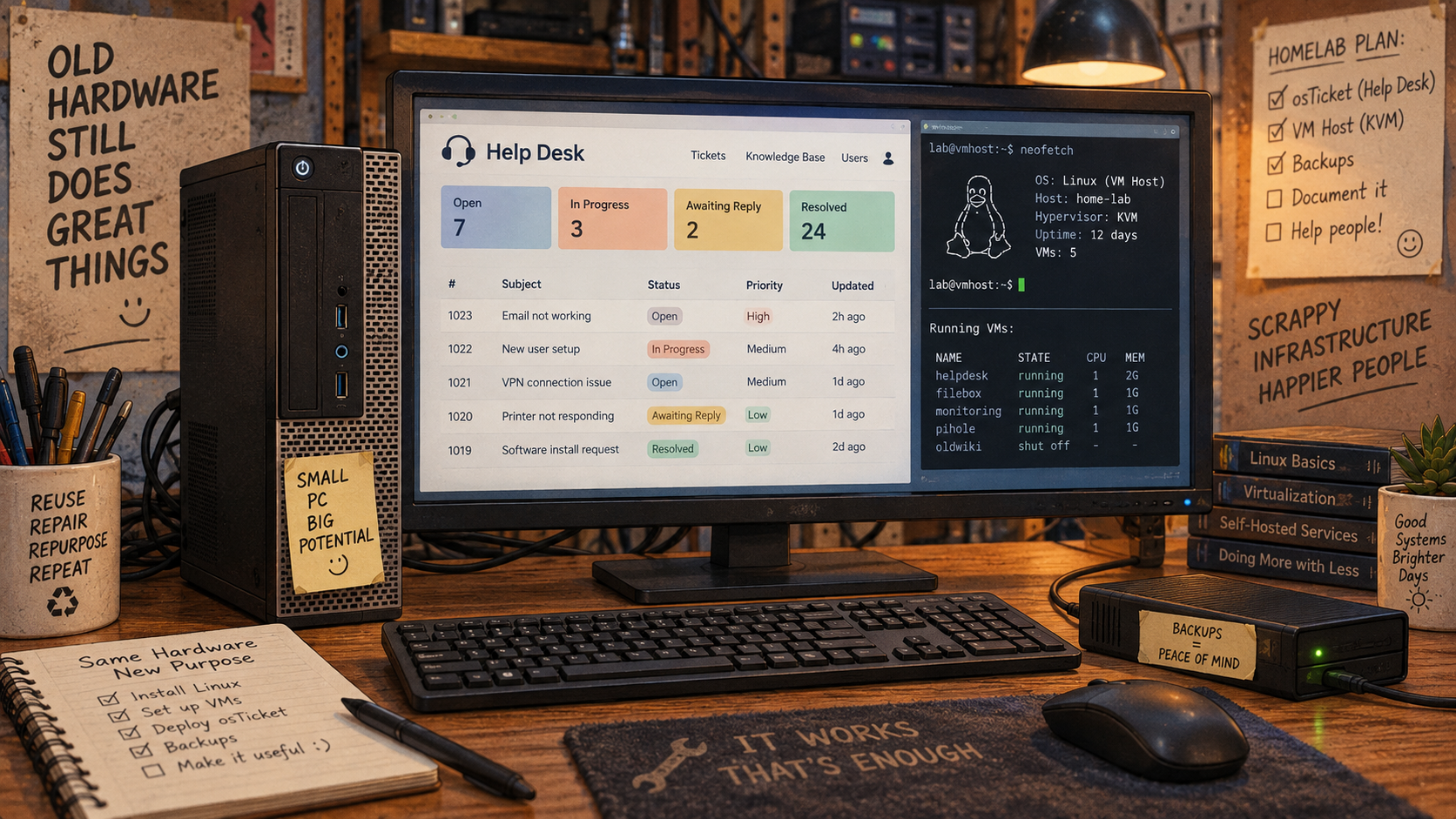
In this case, the computer was an old Dell OptiPlex 3020.
It now hosts an internal osTicket help desk.
The osTicket Internal Help Desk Project
The basic idea was simple.
Instead of troubleshooting something at somebody’s desk, fixing it, and then having that work disappear into history, I wanted a searchable record.
A user can submit something like:
- Printer isn’t working
- Unable to access an application
- Computer is running slowly
- Password or account problem
- Network connection problem
I can also create tickets myself for work that I performed without a user submitting anything.
That second part was important.
A help desk isn’t useful only for users asking for help. It can also become an operational history of an IT environment.
Six months later, instead of trying to remember when I replaced a workstation, changed a configuration, fixed a recurring problem, or worked on a particular system, I can search the ticket history.
That was really the point of the project.
Reusing an Old Dell OptiPlex 3020
The physical foundation for the project is a Dell OptiPlex 3020.
There is nothing particularly exciting about the hardware, which is one of the reasons I like projects like this.
The computer had already reached the point where most businesses would have retired it from normal desktop use. But running Linux virtual machines is a very different workload from being somebody’s everyday Windows workstation.
Instead of throwing useful hardware away, I installed Proxmox VE and turned the machine into a small virtualization host.
That gives me something much more useful than a single-purpose help desk server.
Proxmox provides the virtualization layer, while the help desk runs inside its own Ubuntu virtual machine. If I decide to run another internal service later, I don’t necessarily need another physical computer.
This is the same general philosophy I have used with other projects: separate the service from the hardware whenever practical.
My osTicket Software Stack
The finished system currently uses:
- Dell OptiPlex 3020
- Proxmox VE
- Ubuntu Server 24.04.5 LTS
- osTicket Core v1.17.8
- Apache 2.4.58
- PHP 8.3.6
- MariaDB 10.11.14
One small terminology point is worth mentioning.
MariaDB is compatible with much of the MySQL ecosystem, so it is common to casually refer to this kind of setup as using MySQL. In this installation, however, the actual database server is MariaDB 10.11.14.
The stack is conventional, which is exactly what I wanted.
I wasn’t trying to make the help desk technically interesting. I wanted it to be stable, understandable, repairable, and easy to back up.
Installing Ubuntu as a Proxmox VM
Rather than installing osTicket directly on the OptiPlex, I created an Ubuntu Server virtual machine under Proxmox.
The VM doesn’t require enormous resources. osTicket is a relatively lightweight web application for an environment of this size.
Ubuntu provides the operating system while Apache serves the application, PHP runs osTicket, and MariaDB stores the ticket and configuration data.
Separating everything into a VM gives me several advantages.
I can back up the entire server from Proxmox.
I can move or restore the VM independently of the physical hardware.
I can make infrastructure changes without treating the OptiPlex itself as the application server.
And if that old OptiPlex finally decides it has had enough, the important part of the project is the virtual machine and its data, not the computer sitting underneath it.
Keeping the Help Desk Internal
This help desk has no reason to be exposed to the Internet.
It is an internal business application, so I intentionally kept it that way.
Users on the local network access the help desk using an internal DNS name rather than its IP address.
That makes something like: https://helpdesk.internal
far easier for users to remember than: https://192.168.x.x
It also means the server’s address could change someday without requiring everyone to learn a new URL.
Internal DNS is one of those small infrastructure details that makes a home-grown application feel much more like a properly deployed business service.
Adding HTTPS Without Exposing It to the Internet
Once the basic osTicket installation was working, I wanted HTTPS.
That presented an interesting problem.
The help desk will never be Internet-facing, so there was no reason to expose it publicly simply to obtain a public TLS certificate.
Instead, I created an internal certificate authority and issued a certificate specifically for the help desk server.
Apache was then configured to serve osTicket over HTTPS and redirect HTTP requests to HTTPS.
The certificate includes the internal DNS name used to access the server.
Initially, I manually imported the internal root certificate into one Windows workstation.
That gave me a controlled way to test the entire chain:
Browser → Apache → help desk certificate → internal root CAOnce Windows trusted the root CA, the browser trusted the help desk certificate.
No warning.
No Internet exposure.
No public certificate required.
Deploying the Certificate With Group Policy
Manually installing a trusted root certificate on every computer would defeat the purpose of having Active Directory.
After confirming that the certificate worked correctly on a test workstation, I moved to the next step: Group Policy.
The internal root CA certificate can be deployed to domain computers through:
Computer Configuration → Policies → Windows Settings → Security Settings → Public Key Policies → Trusted Root Certification AuthoritiesThat allows domain-joined Windows systems to automatically trust certificates issued by the internal CA.
The private key for the CA, of course, does not get distributed.
Only the public root certificate goes to the workstations.
This was one of my favorite parts of the project because it tied several otherwise separate technologies together:
- Linux
- Apache
- TLS certificates
- Windows
- Active Directory
- Group Policy
The end result for the employee is much simpler.
They open the help desk.
It works.
That’s how it should be.
Why I Chose User Registration Instead of Active Directory Login
I originally looked at tying user authentication directly into Active Directory.
That would have worked technically, but after looking at how I actually wanted the help desk to operate, I decided to keep things simpler.
I configured osTicket to require user registration instead.
There was a practical reason for that decision.
Our Windows domain is internal, but I still need a real email address associated with each user so that osTicket can send ticket confirmations, updates, and notifications.
An internal Active Directory username by itself doesn’t necessarily give the help desk the email address it needs for communication.
With registration, employees create their osTicket account using their company email address.
That gives me both pieces of information I actually care about:
Who submitted the ticket, and where ticket notifications should be sent.
It also keeps the help desk independent of the internal Active Directory authentication process.
For this environment, that ended up being the cleaner solution.
Sometimes the most tightly integrated option isn’t necessarily the best one.
Email Is Part of the Ticketing System
The email address requirement was important because a ticketing system is much more useful when the person reporting the problem can receive updates automatically.
When an employee registers, they use their company email address.
That address becomes part of the ticketing process.
The user can submit a problem, receive confirmation that the ticket was created, and receive updates as work is performed.
On the IT side, I also receive the ticket notifications I need to know that something has been submitted.
That makes the help desk useful without requiring users to constantly log back into the portal just to find out whether anything has changed.
Email Notifications Through Existing Infrastructure
Rather than configuring another completely independent outbound mail system, I connected osTicket to email infrastructure I already had.
The environment already includes an internal mail relay being used by another project, so osTicket can hand outgoing messages to that relay.
That gives me one place to manage outbound application email instead of configuring SMTP independently on every Linux server I build.
During the setup I did run into an initial email error, but after correcting the configuration, ticket alerts began arriving normally.
That is another advantage of building these projects instead of simply subscribing to a hosted service.
Troubleshooting becomes part of the documentation.
I know how the message gets from osTicket to the relay and from the relay to its destination because I configured the path myself.
Making osTicket Fit the Environment
The stock osTicket installation is designed for a much broader range of help desk environments than I need.
My implementation is intentionally simpler.
One of the first help topics I created was:
Report a Problem
That sounds almost ridiculously basic, but that is intentional.
I don’t want users wondering whether their issue belongs under “Endpoint Services,” “Infrastructure Operations,” “Application Support,” or some other IT terminology they shouldn’t have to understand.
Something isn’t working.
Report the problem.
I can categorize it afterward.
I also started looking at some of the terminology used on the ticket form itself.
For example, osTicket uses labels such as:
User and Collaborators
That makes sense within osTicket, but it isn’t necessarily how people inside a small business describe what they’re doing.
Something like:
Who is Reporting the Problem?
can make considerably more sense to the person actually filling out the form.
This is an area I expect to continue changing as people begin using the system.
The best way to discover confusing fields is to watch someone who didn’t build the application try to use it.
Backing Up the osTicket VM Every Night
Once the help desk was working, backups became part of the project.
A ticketing system eventually becomes more than just an application.
It becomes a record of what happened.
Losing the server would also mean losing ticket history, troubleshooting notes, user information, and configuration changes.
I already use Proxmox to host multiple virtual machines, so I created two automated backup scripts for the VMs I currently want protected.
Both scripts run each night at 3:00 AM and dump their respective virtual machines to an external hard drive connected to the Proxmox host.
For this project, the important one is the osTicket VM.
The nightly process is essentially:
osTicket VM → Proxmox backup → external hard drive
That means the backup isn’t sitting solely inside the same virtual disk as the server it is supposed to protect.
If something happens to the VM, I have a Proxmox backup available.
If Ubuntu breaks after an update, I have a backup.
If I make a configuration change that goes badly, I have a recovery path.
And if the VM itself becomes unusable, I am not starting the entire osTicket installation from scratch.
The backup runs automatically at 3:00 AM because a backup process I have to remember to run manually is eventually a backup process I will forget to run.
Why I Back Up the Entire VM
I could back up only the MariaDB database and the osTicket configuration files.
There is nothing wrong with doing that, and having application-level backups can still be useful.
But because the server is virtualized, I also have the option of backing up the entire machine.
That preserves more than just the tickets.
It preserves:
- Ubuntu configuration
- Apache configuration
- PHP configuration
- osTicket files
- MariaDB
- TLS certificates
- Scheduled tasks
- Application settings
- The overall working state of the server
If I have to restore the system, I would rather restore something I already know worked than rebuild every component individually and hope I remembered every change I made along the way.
Virtualization makes that practical.
What I Actually Wanted From osTicket
It would be very easy to turn this project into something much larger.
I could create complicated departments, service-level agreements, escalation rules, dozens of ticket categories, approval workflows, and detailed automation.
I deliberately haven’t.
At least not yet.
The original purpose was straightforward:
Give users a place to report problems and give me a place to document the work.
That solves an actual problem.
A simple ticket history can answer questions that otherwise depend on memory:
When did this computer start having problems?
Has this printer failed before?
How many times have I dealt with this particular application?
When was this workstation replaced?
What did I do the last time this happened?
Those answers become much easier when the work is documented as it happens.
Old Hardware Still Has a Job
There is also a larger reason I wanted to document this project.
An old Dell OptiPlex 3020 isn’t impressive hardware in 2026.
That’s precisely the point.
It doesn’t need to be.
A machine that is obsolete as an employee workstation can still be perfectly capable of hosting useful internal services.
With Proxmox underneath it, Ubuntu inside a VM, and an open-source application such as osTicket on top, hardware that might otherwise have been discarded now provides a legitimate business function.
I’ve taken a similar approach with security monitoring and some of my other internal projects.
Not every IT problem requires another monthly bill.
Sometimes the hardware is already sitting in the building.
Where the osTicket Project Goes From Here
The help desk is operational, but I don’t consider it finished.
I still expect the ticket forms, categories, terminology, and workflow to change as it gets used.
That’s intentional.
I’d rather start with a simple system that solves the immediate problem and improve it based on actual use than spend weeks designing an elaborate workflow nobody asked for.
Right now the architecture is exactly what I wanted:
Old Dell hardware → Proxmox → Ubuntu Server → Apache/PHP/MariaDB → osTicket
Internal DNS gives it a sensible name.
An internal certificate authority provides HTTPS.
Group Policy distributes trust to Windows computers.
Employees register using their company email addresses.
Email handles ticket notifications.
A nightly Proxmox backup protects the entire VM.
And osTicket keeps track of the work.
Nothing particularly exotic.
It just works.
And an old Dell OptiPlex 3020 has another job instead of becoming e-waste.