
IT Administrator Field Guide: Linux, Networking, Security, and Troubleshooting Commands
My IT administrator field guide is not intended to be a complete Linux command reference. There are plenty of those already.
This is the collection I actually wanted: commands and techniques I have used while administering systems, building security tools, troubleshooting Raspberry Pis, working with Wazuh, scanning networks, dealing with certificates, managing services, and trying to figure out why something that worked yesterday suddenly does not work today.
A lot of these commands are simple. Their usefulness comes from knowing when to use them and how to combine them.
One of my favorite examples started with an Nmap scan. I had a large greppable output file, but I only wanted the IP addresses of machines with open ports. Instead of manually copying addresses, I used awk to extract them, saved them to another file, and fed that file directly back into Nmap.
That is really what this guide is about.
Linux Command-Line Basics
Before getting into troubleshooting, these are some commands I use constantly.
List Files
lsAdd details:
ls -lInclude hidden files:
ls -laHuman-readable file sizes:
ls -lhA combination I use frequently:
ls -lahFind Out Where You Are
pwdUseful when working through scripts or instructions and you have lost track of the current directory.
Change directories:
cd /path/to/directoryReturn home:
cd ~Move up one directory:
cd ..Create Directories
mkdir directoryCreate a complete directory path if intermediate directories do not exist:
mkdir -p /opt/myproject/dataThe -p option is particularly useful in installation scripts.
Finding Files and Information
Knowing that something exists somewhere on a Linux machine is not the same as knowing where it is.
Find a File
find / -name filename 2>/dev/nullThe 2>/dev/null portion hides permission errors.
Case-insensitive search:
find / -iname filename 2>/dev/nullSearch a specific directory:
find /etc -name "*.conf"Search Inside Files with grep
Search for text:
grep "search text" filenameIgnore case:
grep -i "error" logfileSearch recursively:
grep -R "search text" /path/A useful example from troubleshooting:
grep -R "not ok" test-runsSearch Wazuh logs:
sudo grep -i 'office365' /var/ossec/logs/ossec.logThen limit the result:
sudo grep -i 'office365' /var/ossec/logs/ossec.log | tail -n 10This is a pattern I use constantly:
COMMAND | grep SOMETHING | tailInstead of staring at hundreds or thousands of lines, narrow the output until only the useful information remains.
Pipes: One of the Most Useful Linux Techniques
The pipe character:
|takes the output from one command and gives it to another command.
For example:
cat logfile | grep "error"Although grep "error" logfile is cleaner in this particular case, the concept becomes extremely powerful when several tools are combined.
Example:
command | grep something | sort | uniqOr:
command | grep something | tail -n 20Linux commands become considerably more useful when they stop being isolated commands and become pieces of a pipeline.
Redirecting Output
Save output to a file:
command > output.txtAppend instead of overwrite:
command >> output.txtRedirect errors:
command 2>/dev/nullRedirect both standard output and errors:
command > output.txt 2>&1This becomes particularly useful when collecting diagnostic information.
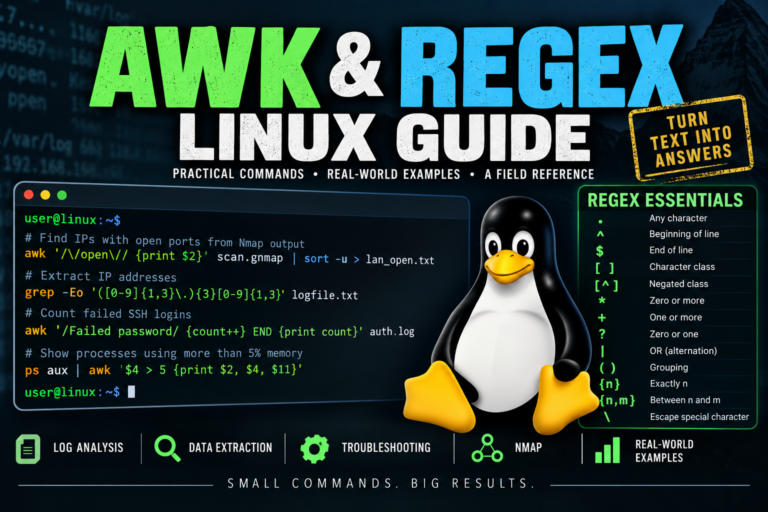
AWK: Extract the Part You Actually Need
awk has become one of my favorite command-line tools because it can turn messy output into something useful.
Suppose a file contains colon-separated fields:
awk -F: '{print $1, $7}' /etc/passwdHere:
-F:means use : as the field separator.
Then:
$1means field one, while:
$7means field seven.
Filter Using Conditions
For example:
awk '$2 > 80 && $3 == "open" {print}'That only prints records where field two is greater than 80 and field three contains open.
Count Matching Log Entries
awk '/Failed password/ {count++} END {print count}' /var/log/auth.logRather than displaying every failed SSH authentication, this counts them.
Regex: Matching Patterns Instead of Exact Text
Regular expressions become especially useful when searching logs and extracting structured information.
For example, extract IPv4-looking addresses:
grep -Eo '([0-9]{1,3}\.){3}[0-9]{1,3}'Breaking that down:
[0-9]means a digit.
{1,3}means between one and three occurrences.
\.means a literal period.
Regex is worth learning because it works across tools including:
grepawksed- programming languages
- SIEM searches
- log analysis
- text editors
Sorting and Counting Results
Sort output:
sort filenameRemove duplicate adjacent entries:
sort filename | uniqCount duplicates:
sort filename | uniq -cThen sort by the largest count:
sort filename | uniq -c | sort -nrThat little pipeline can be extremely useful when analyzing logs.
Nmap: Scan Once, Then Work With the Results
Nmap is far more useful when its output becomes input for something else.
A basic service scan:
nmap -sV TARGETScan all TCP ports:
nmap -p- TARGETSYN scan:
sudo nmap -sS TARGETOperating-system detection:
sudo nmap -O TARGETCombine several techniques:
sudo nmap -sS -sV -O TARGETMy Nmap → AWK → Nmap Workflow
This is one of the techniques that convinced me to spend more time learning awk.
I had already scanned a network and saved the results using Nmap’s greppable output format.
I wanted another file containing only hosts where Nmap had found an open port.
Instead of manually copying addresses:
awk '/\/open\// {print $2}' lan_scan.gnmap | sort -u > lan_open.txtNow lan_open.txt contains the unique IP addresses of hosts where an open port was detected.
I can feed that directly back into Nmap:
nmap -iL lan_open.txtOr perform a more detailed scan:
sudo nmap -sS -sV -O -iL lan_open.txt -oA lan_detailedThis is a perfect example of why learning shell tools matters.
The workflow becomes:
Scan
  ↓
Filter
  ↓
Extract
  ↓
Save
  ↓
Scan only the interesting systems
Network Troubleshooting
When something cannot communicate, I generally start simple.
Display IP Addresses
ip addrShort version:
ip aDisplay Routes
ip routeThis answers an important question:
Where does the machine think the traffic should go?
Test Connectivity
ping IP_ADDRESSFor example:
ping 192.168.1.1A failed ping does not automatically mean the host is down. ICMP may be blocked.
But it remains a useful first test.
DNS Troubleshooting
DNS problems can masquerade as network problems.
Test name resolution:
nslookup hostnameSpecify the DNS server:
nslookup hostname 192.168.1.10Another useful Linux lookup:
getent hosts hostnameThis is especially helpful because getent uses the system’s configured name-resolution mechanisms.
A machine might be reachable by IP address but not hostname. When that happens, DNS becomes one of the first places I look.
curl: Test the Application Without the Browser
curl is one of the quickest ways to determine whether a web service is actually responding.
curl http://127.0.0.1:8080Silent mode:
curl -s http://127.0.0.1:8080This is especially useful with web applications behind Nginx or Apache.
If:
curl http://127.0.0.1:8000works locally but the website does not work remotely, I know the application itself may be fine.
Now I can start looking at:
- Apache
- Nginx
- firewall rules
- DNS
- certificates
- reverse-proxy configuration
That dramatically narrows the problem.
systemd: Managing Services
I use systemctl constantly.
Check status:
sudo systemctl status SERVICEStart:
sudo systemctl start SERVICEStop:
sudo systemctl stop SERVICERestart:
sudo systemctl restart SERVICEEnable at boot:
sudo systemctl enable SERVICEEnable and start immediately:
sudo systemctl enable --now SERVICECheck whether a service is running:
systemctl is-active SERVICEWhen changing a systemd unit:
sudo systemctl daemon-reloadThen restart the service.
journalctl: When systemctl Says “Failed”
systemctl status tells me that something failed.
journalctl often tells me why.
journalctl -u SERVICEShow the last 30 lines:
journalctl -u SERVICE -n 30 --no-pagerFollow the log live:
journalctl -u SERVICE -fOne troubleshooting sequence I use repeatedly is:
sudo systemctl restart SERVICE
sudo systemctl status SERVICE
journalctl -u SERVICE -n 50 --no-pager
The error in the journal is usually much more useful than repeatedly restarting the service.
Timers
List systemd timers:
systemctl list-timers --allFind a particular timer:
systemctl list-timers --all | grep TIMERNAMEThis has been useful when building scheduled security-monitoring scripts.
Process Troubleshooting
List processes:
ps auxSearch them:
ps aux | grep PROCESSA more detailed process-tree-style view can help when a program appears frozen:
ps -ad -o pid,ppid,state,commandThen filter it:
ps -ad -o pid,ppid,state,command | grep PROCESSThis helped me determine that a seemingly stuck process was actually waiting for another process.
That distinction matters.
The parent process may not be the real problem.
Stopping a Process
Find its PID and then:
kill -TERM PIDTERM asks the process to terminate cleanly.
I prefer trying that before immediately reaching for:
kill -9 PIDSIGKILL has its place, but it does not give the process an opportunity to clean up.
Storage and Disk Troubleshooting
One of the most useful commands when working with Raspberry Pis, VMs, USB disks, or NVMe storage is:
lsblkFor more detail:
lsblk -o NAME,SIZE,TYPE,MOUNTPOINTS,MODELThat can immediately tell me:
- what disks exist
- their sizes
- whether they are mounted
- where they are mounted
- which device is the SD card
- which device is the NVMe drive
Before writing an image to a disk, I want to know exactly which device is which.
Find the Device Behind a Mount Point
findmnt /This tells me which filesystem backs /.
It is particularly useful on Raspberry Pis when I need to determine whether the Pi actually booted from the SD card or NVMe drive.
Directory Sizes
du -sh ~/*This provides a quick view of which directories are consuming space.
Identify a Raspberry Pi
cat /proc/device-tree/modelThis is a quick way to confirm which Raspberry Pi model I am actually working on.
That matters more than it sounds when several Pis are being used for different projects.
File Permissions
Linux permissions become much easier once the numeric values are understood.
4 = read
2 = write
1 = execute
Add them together.
7 = read + write + execute
6 = read + write
5 = read + execute
4 = read
For example:
chmod 754 filemeans:
User:  7 = rwx
Group: 5 = r-x
Other: 4 = r--
Change ownership:
sudo chown user:group fileRecursive ownership:
sudo chown -R user:group /directorySSH
Connect to another Linux machine:
ssh username@hostnameOr:
ssh username@IP_ADDRESSVerbose mode can help diagnose connection problems:
ssh -v username@hostnameSSH Keys
Generate a key:
ssh-keygenCopy the public key:
ssh-copy-id username@hostnameTest it:
ssh username@hostnameOnce key authentication is confirmed, password-based SSH can be disabled where appropriate.
The important part is the order: verify the key works before disabling password authentication.
Otherwise, it is very easy to lock yourself out.
Copy Files Over SSH
scp file username@hostname:/destination/Copy something back:
scp username@hostname:/path/file .This is especially convenient when managing Raspberry Pis without attaching a keyboard or monitor.
Certificates and TLS
Certificates can create some wonderfully misleading errors.
openssl is one of my favorite tools for figuring out what a server is actually presenting.
Inspect a Remote TLS Certificate
openssl s_client -connect hostname:443 -servername hostnameFor LDAPS:
openssl s_client \
  -connect hostname:636 \
  -servername hostname \
  -showcerts </dev/null
This lets me inspect:
- certificate chain
- issuer
- subject
- expiration
- TLS negotiation
- certificate errors
Inspect a Web Server Certificate Cleanly
A useful pipeline is:
openssl s_client \
  -connect hostname:443 \
  -servername hostname \
  </dev/null 2>/dev/null |
openssl x509 -noout -subject -issuer -dates -ext subjectAltName
Instead of pages of TLS debugging information, I get the pieces I normally care about.
Again, this is the power of piping commands together.
Time Matters More Than You Think
Incorrect system time can break:
- TLS certificates
- package repositories
- authentication
- Kerberos
- log correlation
- scheduled jobs
Check it:
timedatectlNormally I want NTP enabled:
sudo timedatectl set-ntp trueIf a machine’s clock is wildly incorrect, correcting the clock can sometimes solve what initially appears to be a certificate or repository problem.
Follow Symbolic Links
Sometimes the file you are investigating is not really where it appears to be.
For example:
readlink -f /bin/chshmight reveal:
/usr/bin/chshNow I know the actual file being executed.
Determine Which Package Owns a File
On Debian and Ubuntu:
dpkg -S /usr/bin/chshThis tells me which installed package supplied that file.
That becomes useful when investigating suspicious or modified binaries.
Verify Package Files
sudo dpkg --verify PACKAGEThis can reveal files whose attributes or checksums differ from the package’s expected state.
The result still requires interpretation.
A changed configuration file is not automatically evidence of compromise.
That lesson is particularly important when dealing with security alerts: an alert is a reason to investigate, not automatically proof that something malicious happened.
Package Management
Update repository information:
sudo apt updateUpgrade packages:
sudo apt upgradeInstall something:
sudo apt install PACKAGEBefore blaming an application, it is often worth checking whether its dependencies actually exist.
Python Script Validation
Before running a Python script as a service, check whether it compiles:
python -m py_compile script.pyNo output is generally good news.
Then run it manually:
python script.pyOnly after the script works manually do I want systemd involved.
This avoids debugging Python, permissions, systemd, and file paths simultaneously.
A Better Troubleshooting Order
One of the larger lessons from all of these projects is that troubleshooting gets easier when I isolate layers.
For a web application, for example:
Is the process running?
        ↓
Does it work locally?
        ↓
Is the port listening?
        ↓
Does the reverse proxy work?
        ↓
Does DNS resolve correctly?
        ↓
Does TLS work?
        ↓
Can another machine reach it?
Do not change five things at once.
If I change one thing and test again, I learn something.
If I change five things and it suddenly works, I may have fixed it, but I have no idea why.
Wazuh Configuration Testing
One of the better habits I developed while working with Wazuh was testing configuration before restarting the manager.
Test the analysis configuration:
sudo /var/ossec/bin/wazuh-analysisd -tTest log collection:
sudo /var/ossec/bin/wazuh-logcollector -tTest modules:
sudo /var/ossec/bin/wazuh-modulesd -tThen restart:
sudo systemctl restart wazuh-managerVerify:
sudo systemctl is-active wazuh-managerAnd inspect the log if necessary:
sudo tail -n 50 /var/ossec/logs/ossec.logFor rule testing:
sudo /var/ossec/bin/wazuh-logtestThis is considerably safer than editing a configuration file, restarting Wazuh, and hoping I did not break anything.
Windows Group Policy Troubleshooting
Not everything in this field guide is Linux.
When troubleshooting Group Policy on Windows, one of the first commands I use is:
gpresult /scope computer /rFor user policy:
gpresult /scope user /rForce a refresh:
gpupdate /forceThe important point is to verify that the policy is actually applied before troubleshooting the thing the policy was supposed to configure.
Otherwise I can waste a lot of time debugging a certificate, registry setting, security control, or application when the actual problem is simply that the GPO never reached the computer.
Testing Before Changing
This may be the most important technique in this entire field guide.
Before making a change, collect information.
Instead of immediately editing a network configuration:
ip a
ip route
Before restarting a service:
systemctl status SERVICEBefore changing DNS:
nslookup hostnameBefore replacing a certificate:
openssl s_client ...Before deleting a suspicious file:
readlink -f FILE
dpkg -S FILE
dpkg --verify PACKAGE
Before writing an image to a disk:
lsblk
findmnt /
Before modifying a systemd service:
journalctl -u SERVICEThe command that fixes the problem is useful.
The command that tells me what the problem actually is is usually more valuable.
Commands Worth Remembering
I do not try to memorize every option for every Linux utility. That is what man pages and documentation are for.
But there is a relatively small toolbox I want immediately available:
ls
cd
pwd
find
grep
awk
sed
sort
uniq
tail
head
cat
less
chmod
chown
ps
kill
ip
ping
nslookup
getent
curl
ssh
scp
openssl
lsblk
findmnt
du
systemctl
journalctl
timedatectl
readlink
dpkg
nmap
Learning these tools individually is useful.
Learning how to combine them is where the command line starts becoming genuinely powerful.
The Field Technique I Keep Coming Back To
After years of working with computers, I still run into systems where I do not immediately know what is wrong.
The commands change. The basic technique does not.
Observe first.
Collect information.
Reduce the problem.
Filter out what does not matter.
Test one layer at a time.
Make one change.
Test again.
And when the output contains 10,000 lines but the answer is hiding in three of them, there is probably a grep, awk, pipe, or regular expression that can find them faster than I can.
That is why this is a field guide rather than a command list.
I expect to keep adding to it.
Quick Reference
| Task | Command |
|---|---|
| Current directory | pwd |
| Detailed files | ls -lah |
| Find file | find / -name filename 2>/dev/null |
| Search files | grep -R "text" /path |
| IP addresses | ip a |
| Routing table | ip route |
| DNS lookup | nslookup hostname |
| System resolver lookup | getent hosts hostname |
| Test web service | curl URL |
| Processes | ps aux |
| Disk devices | lsblk |
| Root filesystem | findmnt / |
| Directory sizes | du -sh ~/* |
| Service status | systemctl status SERVICE |
| Service logs | journalctl -u SERVICE |
| Live service log | journalctl -u SERVICE -f |
| System time | timedatectl |
| Resolve symlink | readlink -f FILE |
| Package owning file | dpkg -S FILE |
| Verify package | dpkg --verify PACKAGE |
| SSH | ssh user@host |
| Copy over SSH | scp |
| TLS debugging | openssl s_client |
| Network scan | nmap |
| Windows computer GPO | gpresult /scope computer /r |
| Windows user GPO | gpresult /scope user /r |
| Refresh GPO | gpupdate /force |
The table is useful when I know what I need to do.
The rest of this field guide is for the days when I don’t.
Official Documentation and Additional Resources
The commands covered in this IT Administrator Field Guide provide a practical starting point for Linux administration, network troubleshooting, and security investigations. However, Linux utilities can behave differently depending on the distribution, installed packages, and software versions.
For additional technical information, the following resources provide documentation and reference material:
- Linux Manual Pages – Reference documentation covering Linux system calls, administrative utilities, processes, permissions, and networking.
- Linux ip Command Documentation – Detailed information about inspecting and managing network interfaces, IP addresses, routing tables, and network devices.
- Ubuntu Server Documentation – Official documentation covering Ubuntu Server administration, networking, package management, and security.
- Red Hat Enterprise Linux Documentation – Enterprise Linux administration and troubleshooting references.
- Nmap Reference Guide – Official reference for network discovery, port scanning, service identification, and troubleshooting.
- Getting Started with Wazuh – Check this Getting Started for an overview of the Wazuh platform components, architecture, and common use cases
- Create Custom Wazuh Rules – Custom rule and real world examples
These resources complement the commands demonstrated throughout this guide and provide additional explanations, configuration examples, and platform-specific considerations.