Encrypt a USB Drive with BitLocker: An IT Field Guide
Encrypt a USB drive with BitLocker when you need portable storage that protects its contents if the device is lost, stolen, or accessed without authorization. For Windows administrators, the entire process can be performed using DiskPart and PowerShell without relying on the graphical BitLocker wizard.
Recently, I prepared a 128 GB external USB drive for encrypted storage. Rather than clicking through Windows menus, I decided to handle the process using the same command-line tools I regularly use for system administration.
The objective was straightforward: prepare the disk, format it with NTFS, encrypt it using BitLocker with AES-256, and verify that the resulting drive could be unlocked securely.
But there are important details worth understanding before running the commands. Choosing the correct disk, selecting an encryption method, managing recovery passwords, and testing the finished drive are just as important as enabling encryption.
This field guide walks through those decisions and commands.
Why Encrypt a USB Drive with BitLocker?
USB drives are convenient because they are portable. Unfortunately, portability also makes them easy to lose.
Consider a flash drive containing configuration exports, archived documents, network diagrams, or files temporarily transferred between systems.
Without encryption, someone with physical access to the USB drive can generally read its contents by connecting it to another computer.
NTFS permissions alone do not provide the same protection. An administrator on another Windows installation, or someone accessing the drive from another operating system, may be able to bypass or modify file-system permissions.
BitLocker addresses this problem by encrypting the volume itself.
When properly configured and locked, the data remains encrypted until an authorized user supplies an appropriate unlocking credential.
For an external USB drive, this is commonly called BitLocker To Go.
What BitLocker does not protect against
Encryption is not a substitute for endpoint security.
Once the drive is unlocked, applications and users with sufficient access can read its contents. Malware running under the appropriate security context may also access those files.
BitLocker also does not replace backups. An encrypted drive can still fail, become corrupted, or be accidentally formatted.
For this project, BitLocker provides protection for data at rest, not protection against every possible threat.
The Lab: A 128 GB USB Drive
The hardware requirements for this project were modest.
| Component | Configuration |
|---|---|
| Storage | 128 GB external USB drive |
| Operating system | Windows with BitLocker management support |
| Partition scheme | GPT (recommended for modern systems) |
| File system | NTFS |
| Encryption | BitLocker To Go |
| Encryption algorithm | XTS-AES-256 |
| Unlock method | Password |
| Recovery | 48-digit BitLocker recovery password |
| Tools | DiskPart and PowerShell |
For this walkthrough, Windows assigned the drive letter J:.
Your drive letter may be different. Every command referencing J: must be adjusted to match your own environment.
Warning: DiskPart commands can destroy data. Verify the disk number, model, and capacity before making changes. The commands below assume the target USB drive can be erased completely.
Step 1: Identify the Correct USB Drive
Before formatting anything, identify the physical disk.
Open an elevated Command Prompt or Windows Terminal session and enter:
diskpartList the connected disks:
list diskDiskPart displays each available disk, including its size and current partition information.
Find the external USB drive using its reported capacity. A device marketed as 128 GB may appear closer to 119 GiB in Windows.
Do not select a disk based on its number alone.
If there is any uncertainty, exit DiskPart and use PowerShell to inspect the device:
Get-Disk |
    Select-Object Number, FriendlyName, BusType, Size, PartitionStyle
The BusType column can help identify USB-attached storage, although it should not be the only factor used to confirm the target.
For additional detail:
Get-Disk |
    Where-Object BusType -eq 'USB' |
    Format-List Number, FriendlyName, SerialNumber, Size
A useful habit is to record the device model and disk number before performing destructive storage operations.
Step 2: Clean and Partition the USB Drive
After positively identifying the target disk, return to DiskPart.
Select the appropriate disk number:
select disk <disk-number>For example, replace <disk-number> with the number identified in the previous step.
Verify the selection:
detail diskThis is your final opportunity to confirm the target before destroying its existing partition layout.
If the drive contains no files you need to preserve, run:
cleanThe clean command removes partition and volume formatting information. It does not securely overwrite every sector of the device.
For a modern Windows-only data drive, initialize the disk as GPT:
convert gptCreate a primary partition:
create partition primaryThis creates a partition using the available unallocated space.
If your disk has already been cleaned, initialized, and partitioned, do not repeat these destructive preparation steps.
Step 3: Format the USB Drive as NTFS
Next, format the partition:
format fs=ntfs quick label="EncryptedDrive"Assign an available drive letter:
assignCheck the results:
list volumeThe newly created volume should appear with the label EncryptedDrive, the NTFS file system, and an assigned drive letter.
In my example, that letter was J:.
Exit DiskPart:
exitWhy use NTFS instead of exFAT?
NTFS is a reasonable choice for a drive intended primarily for Windows administration.
It supports Windows permissions, journaling, and other file-system functionality commonly used in Windows environments.
exFAT may be preferable for some cross-platform storage scenarios, and BitLocker can protect supported exFAT volumes too.
However, BitLocker itself is primarily a Windows technology. Choosing exFAT does not automatically make an encrypted drive readable by macOS or Linux.
For this project, NTFS was the practical choice.
Step 4: Verify the Volume in PowerShell
Open PowerShell as Administrator.
First, confirm that Windows recognizes the newly formatted USB volume.
Get-Volume -DriveLetter JConfirm that the output identifies the intended volume and that its file system is NTFS.
Now check BitLocker:
Get-BitLockerVolume -MountPoint "J:"For a newly prepared, unencrypted drive, the expected result is generally:
- VolumeStatus: FullyDecrypted
- EncryptionPercentage: 0
- ProtectionStatus: Off
If the drive is already encrypted or encryption is underway, investigate its current state rather than attempting to initialize the process again.
Step 5: Encrypt a USB Drive with BitLocker Using PowerShell
Now comes the encryption process.
First, create a secure string containing the password that will unlock the USB drive.
$Password = Read-Host "Enter BitLocker Password" -AsSecureStringPowerShell prompts for the password without displaying it in plain text.
Next, enable BitLocker:
Enable-BitLocker -MountPoint "J:" `
    -EncryptionMethod XtsAes256 `
    -PasswordProtector `
    -Password $Password
The parameters are worth understanding:
| Parameter | Purpose |
|---|---|
-MountPoint | Identifies the volume |
-EncryptionMethod | Selects the encryption algorithm |
XtsAes256 | Uses XTS-AES with a 256-bit key |
-PasswordProtector | Configures password-based unlocking |
-Password | Supplies the secure password value |
This command initiates encryption of the USB drive.
By default, BitLocker encrypts the entire volume unless used-space-only encryption is requested.
Why choose XTS-AES-256?
XTS-AES is designed for encrypting storage devices.
The 256-bit option provides a strong encryption configuration, although it is not necessarily the best choice for every portable device.
Compatibility matters. Older Windows releases may require one of the legacy AES-CBC modes rather than XTS-AES.
For a USB drive intended only for modern Windows computers, XTS-AES-256 is a reasonable choice.
For a device that must be shared across older operating systems, review compatibility requirements before choosing the algorithm.
Step 6: Monitor the Encryption Process
One interesting part of this process was how little interaction Windows required after encryption started.
After initiating BitLocker, I checked the drive’s progress and found that it had already reached 91%.
Rather than guessing whether the process was complete, PowerShell gave me a way to verify the actual state.
Run:
Get-BitLockerVolume -MountPoint "J:" |
    Select-Object VolumeStatus, EncryptionPercentage
You can also use the Windows command-line management tool:
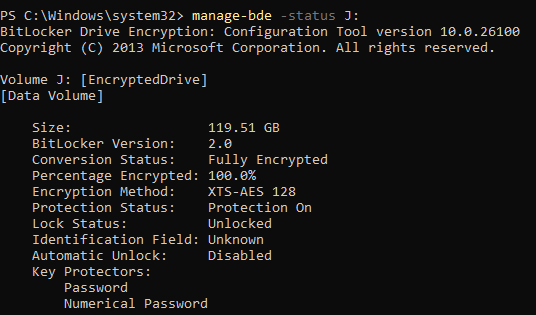
manage-bde -status J:These commands allow you to check the drive without interrupting the encryption operation.
How long does USB encryption take?
Encryption time varies considerably.
The most important factors include:
- The USB interface and negotiated connection speed
- The flash drive’s sustained write performance
- Whether full-volume or used-space-only encryption is selected
- The drive’s controller and thermal behavior
- Competing disk activity
An external SSD may finish much faster than an inexpensive USB flash drive, even if both use USB 3.x.
A flash drive advertised with impressive read speeds may also have substantially slower sustained write speeds.
For a 128 GB USB drive, encryption might take minutes or several hours. Monitoring actual progress is more reliable than relying on a generic estimate.
Avoid disconnecting the drive while encryption is underway. Keep the computer powered on and prevent sleep until the process finishes.
Step 7: Configure a BitLocker Recovery Password
A password protector and a recovery password serve different purposes.
The regular password allows the user to unlock the USB drive during normal operation.
The recovery password is an emergency mechanism for accessing the encrypted volume if the regular password is forgotten or unavailable.
Check the existing protectors:
(Get-BitLockerVolume -MountPoint "J:").KeyProtector |
    Format-List KeyProtectorType, KeyProtectorId
Look for a protector of type RecoveryPassword.
If one does not exist, create it:
Add-BitLockerKeyProtector -MountPoint "J:" `
    -RecoveryPasswordProtector
To display the recovery password:
(Get-BitLockerVolume -MountPoint "J:").KeyProtector |
    Where-Object KeyProtectorType -eq 'RecoveryPassword' |
    Format-List KeyProtectorId, RecoveryPassword
Treat this output as a secret. The 48-digit recovery password can provide access to the encrypted data.
Store the recovery information in a secure password manager, an appropriate enterprise key escrow system, or another protected location separate from the USB device.
Do not place the only copy of the recovery password on the drive it is intended to recover.
Avoid copying recovery passwords into tickets, screenshots, public documentation, or unsecured text files.
Step 8: Verify the Encryption Status
Once the encryption process finishes, inspect the volume again:
Get-BitLockerVolume -MountPoint "J:" |
    Format-List MountPoint, VolumeStatus,
        EncryptionPercentage, ProtectionStatus,
        EncryptionMethod
For a successfully encrypted, protected volume, look for:
| Property | Expected result |
|---|---|
| VolumeStatus | FullyEncrypted |
| EncryptionPercentage | 100 |
| ProtectionStatus | On |
| EncryptionMethod | XtsAes256 |
You can perform an additional verification:
manage-bde -status J:The two tools provide useful confirmation of the volume’s encryption and protection states.
Do not assume that an encryption percentage of 100% automatically proves that the unlocking and recovery processes have been tested.
Step 9: Test the USB Drive Before Trusting It
Encryption is only part of the job. The final step is to confirm that the drive behaves as expected.
First, ensure that the encryption process is complete and that your recovery password has been saved securely.
Create a harmless test file on the unlocked volume:
"BitLocker verification test" |
    Set-Content "J:\bitlocker-test.txt"
Confirm the file exists:
Get-Content "J:\bitlocker-test.txt"Safely eject the USB drive using Windows, then disconnect it.
Reconnect the drive.
Depending on how the computer is configured, Windows should require an unlock password before the encrypted contents become accessible.
If the drive unlocks automatically, check whether automatic unlocking has been configured on that Windows computer.
Once the drive is unlocked, verify the test file again.
If the file is readable after entering the correct password, you have successfully tested the normal access workflow.
What about the recovery password?
A separate recovery test is also useful, particularly for devices containing important information.
Perform that test only after confirming that your regular unlock password and recovery password are securely available.
You should never wait until an emergency to discover that a recovery password was copied incorrectly.
Troubleshooting: When BitLocker Does Not Behave as Expected
BitLocker PowerShell commands are not available
Confirm that the Windows edition supports BitLocker management and that the BitLocker PowerShell module is available.
Get-Module -ListAvailable BitLockerSome Windows editions, including standard Windows Home installations, do not provide the full BitLocker management functionality required for this procedure.
The USB drive cannot be found
Verify the drive letter:
Get-VolumeUSB drives do not always retain the same drive letter when connected to different systems.
Never assume that J: will remain assigned indefinitely.
The drive is already encrypting
If VolumeStatus indicates that encryption is in progress, do not repeatedly issue the enable command.
Monitor the existing operation:
Get-BitLockerVolume -MountPoint "J:"Encryption appears to be stuck
Check the current status:
manage-bde -status J:If progress remains unchanged for an extended period, examine disk activity, available power, USB connectivity, and Windows event logs.
The Event Viewer locations worth checking include:
- Applications and Services Logs → Microsoft → Windows → BitLocker-API
- Windows Logs → System
Inspect available operational and management logs under BitLocker-API, noting that exact channels can vary by Windows version.
Avoid immediately restarting encryption or formatting the disk. First establish whether the process is actively working or encountering hardware or I/O errors.
The USB drive opens without asking for a password
Check for automatic unlocking:
Get-BitLockerVolume -MountPoint "J:" |
    Format-List AutoUnlockEnabled, ProtectionStatus
A previously trusted computer may have automatic unlocking configured.
That is different from a drive being unencrypted.
For a stronger real-world check, test the USB drive on another compatible Windows computer where automatic unlocking has not been enabled.
Full Encryption vs. Used-Space-Only Encryption
One final decision deserves attention.
BitLocker supports both full-volume encryption and used-space-only encryption.
Full-volume encryption processes the entire volume, including currently unused space.
Used-space-only encryption processes allocated data and encrypts newly written data as it is added.
For a brand-new device with no prior sensitive data, used-space-only encryption may reduce the initial encryption time significantly.
For a previously used USB drive, full-volume encryption is usually the more cautious option because old deleted data may still exist in unallocated areas.
However, flash storage has an additional complication: wear leveling and controller behavior can prevent ordinary software operations from reliably overwriting every physical flash cell.
Neither DiskPart clean nor a routine Windows quick format should be mistaken for a verified secure erase.
When decommissioning storage that previously held highly sensitive information, consider the storage manufacturer’s sanitization capabilities and your organization’s media disposal policy.
Final Thoughts: A Secure USB Drive Is More Than a Checkbox
Preparing the 128 GB USB drive was straightforward.
DiskPart handled the partitioning. NTFS provided the file system. PowerShell configured BitLocker with XTS-AES-256.
But the most valuable part of the exercise was not the encryption command itself.
It was establishing a repeatable procedure that could be verified.
When encryption reached 91%, I could inspect the actual status instead of wondering whether Windows was still working.
Once complete, the same tools could confirm the encryption algorithm, protection state, and recovery options.
For an IT administrator, that visibility is important.
A secure USB drive is not simply one that reports encryption enabled. It is one that has been configured correctly, can be unlocked by an authorized user, and can be recovered when something goes wrong.
That is the difference between running a command and having a dependable administrative procedure.
RootNotebook Techniques documents practical IT administration, troubleshooting, and security procedures, with an emphasis on understanding what a command changes and how to verify the result.