Android and iPhone Privacy Settings: Reduce Tracking on Your Phone
Android and iPhone privacy settings give you considerably more control over tracking and data collection than many people realize. The problem is that those controls are scattered across several menus, and it’s easy to grant an app access to your location, microphone, photos, or contacts and never think about it again.
I don’t approach phone privacy by turning everything off. A navigation app needs location access. A camera app obviously needs the camera. If I want to upload a picture, an application may need access to my photos.
The better question is: Does this app need this permission all the time?
That’s what I look at when setting up a phone or going through one that I’ve been using for a while. Both Android and Apple’s iPhone provide built-in controls that can substantially reduce unnecessary access and tracking without making the phone miserable to use.
If you’re also reviewing your computer, my Windows 11 Privacy and Cleanup Guide covers temporary files, Storage Sense, Windows tracking settings, and browser privacy on the desktop
Start With App Permissions
Whether you’re using Android or an iPhone, this is probably the most useful place to start.
Applications can potentially request access to things such as:
- Location
- Camera
- Microphone
- Contacts
- Photos
- Bluetooth
- Nearby devices
- Notifications
- Calendars
Over time, it’s easy to forget which permissions you’ve granted.
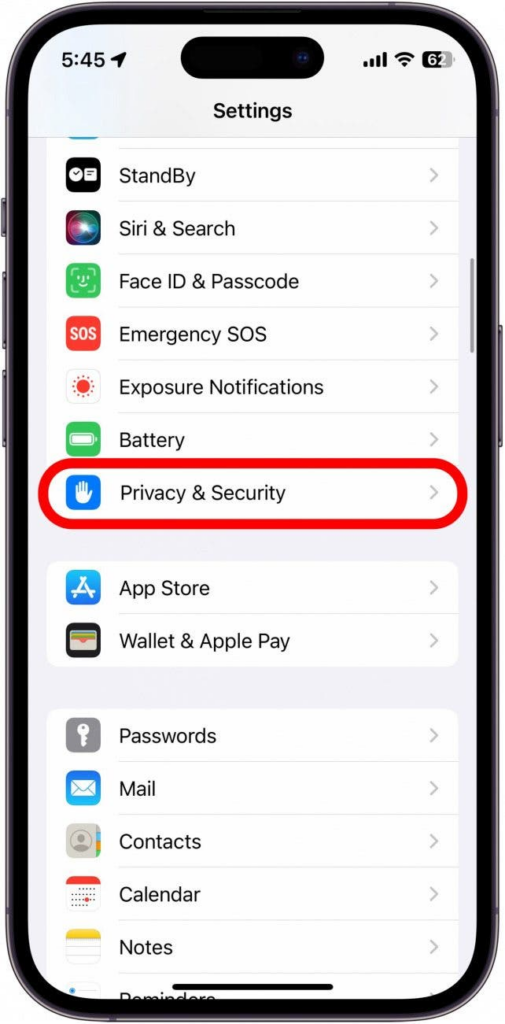
On an iPhone, start with:
Settings → Privacy & Security
On Android, the exact menus vary by manufacturer and Android version, but you’ll generally find them under:
Settings → Security & privacy → Privacy → Permission manager
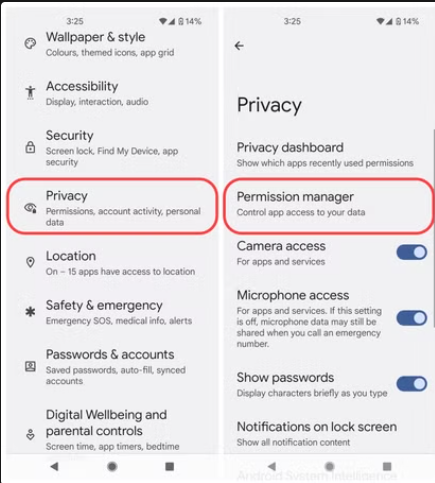
You can then review permissions by category.
Instead of looking at 75 applications individually, I find it easier to start with something sensitive like Location or Microphone and see every application that has access.
If I can’t think of a reason an application needs a particular permission, I remove it.
If something stops working, I can always grant the permission again.
Stop Giving Every App Your Precise Location
Location deserves some extra attention.
Modern phones can provide applications with extremely accurate location information. That’s useful for navigation, ride-sharing, weather alerts, and finding nearby businesses.
A lot of applications don’t need that level of accuracy.
Both Android and iPhone allow you to control whether an application receives your precise location or a more approximate location.
They also provide choices such as allowing location:
- All the time
- Only while using the app
- Just once
- Never
For most applications, While Using the App is a reasonable starting point.
A navigation application is one thing. A shopping application knowing where I am 24 hours a day is another.
Go through the list and ask whether each application really needs continuous location access.
Turn Off App Tracking on iPhone
Apple provides a specific privacy control called App Tracking Transparency.
Go to:
Settings → Privacy & Security → Tracking
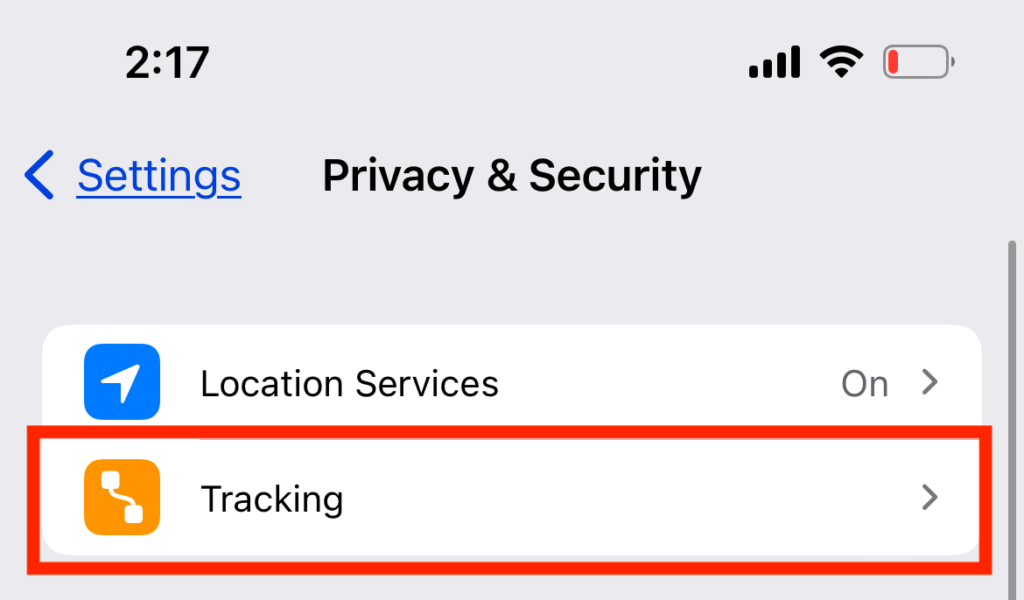
Here you can control whether applications are allowed to ask permission to track your activity across other companies’ apps and websites.
You can disable:
Allow Apps to Request to Track
Or leave the feature enabled and decide on an app-by-app basis.
Personally, if an application doesn’t have a clear reason to track my activity across other companies’ services, I don’t see much benefit in allowing it.
This doesn’t eliminate every form of tracking. Websites and services have other ways of collecting information, particularly when you’re signed into an account.
But it’s still a worthwhile privacy control.
Reduce Advertising Personalization on Android
Android privacy settings vary somewhat depending on whether you’re using a Google Pixel, Samsung Galaxy, or another manufacturer’s phone.
Search your Android Settings for terms such as:
Ads
Advertising
Ad privacy
Newer Android versions provide controls over advertising topics and other information used for personalized advertising.
Review these options and disable the advertising personalization features you don’t want.
You should also review the privacy controls associated with your Google account. Your phone’s operating-system settings are only part of the picture if you’re signed into Google services.
Turning off personalized advertising doesn’t mean you’ll stop seeing ads.
It generally means the ads should be less dependent on information being used to personalize them specifically for you.
Check Your iPhone Analytics Settings
On an iPhone, go to:
Settings → Privacy & Security → Analytics & Improvements
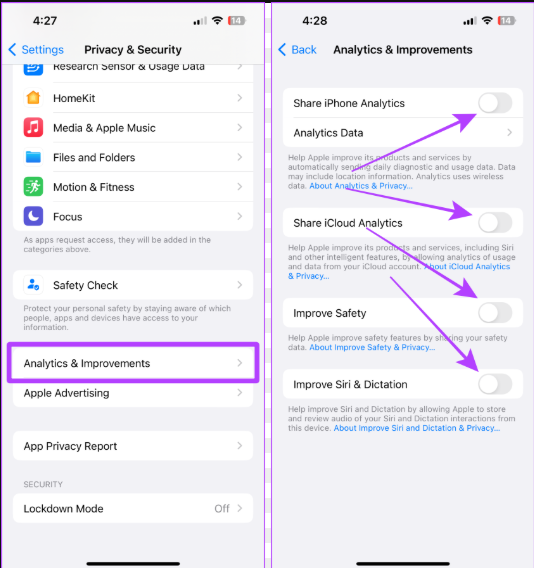
You’ll find options related to sharing diagnostic and usage information with Apple.
Review each setting and decide whether you want to participate.
This is another area where I make a distinction between necessary functionality and optional data collection.
If sharing something is optional and I don’t see a benefit to me, I generally turn it off.
Review Android Usage and Diagnostic Data
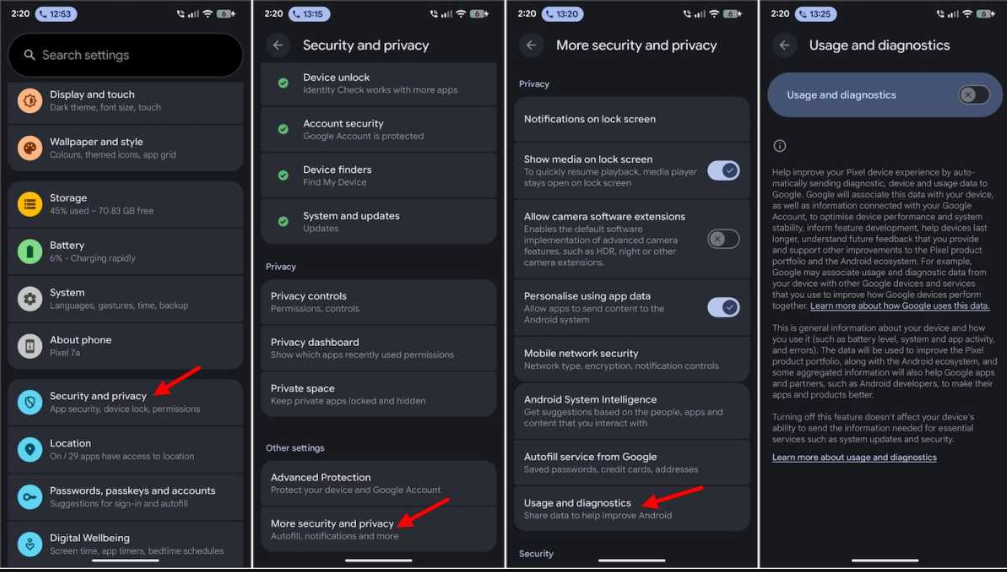
Android devices also have diagnostic and usage-data settings, although their exact location can vary between manufacturers.
Search Settings for:
Usage & diagnostics
or simply:
Diagnostics
Review what’s enabled.
Keep in mind that Android is an operating system used by many manufacturers. A Google Pixel and Samsung Galaxy may have additional manufacturer-specific privacy and diagnostic settings.
That means it’s worth checking both the general Android privacy settings and anything provided by the phone manufacturer.
Check Camera and Microphone Access
Your camera and microphone are two permissions worth reviewing periodically.
Both Android and iPhone now provide visible indicators when an application accesses them.
On iPhone, you’ll see indicators near the top of the screen when the microphone or camera is being used.
Android also displays privacy indicators when applications access sensitive hardware such as the camera or microphone.
If you see one of those indicators when you aren’t doing anything that should require the camera or microphone, investigate which application is responsible.
More importantly, periodically review which applications have permission in the first place.
A video conferencing application needs both.
A flashlight application doesn’t.
Be Careful With Photo Access
Photo permissions have become much better on modern phones.
You don’t necessarily have to give an application access to your entire photo library just because you want to upload one picture.
Both modern Android and iOS versions provide ways to limit an application’s access to selected photos.
Use that option when it makes sense.
If I’m uploading one picture to an application I’ve barely used before, there’s little reason to hand it access to years of photos.
Review Background Activity
Applications don’t always stop doing things just because you’ve closed them.
On iPhone, review:
Settings → General → Background App Refresh
You can disable background refresh entirely or control it application by application.
I prefer the second approach.
Messaging, navigation, cloud-storage, or other applications may have legitimate reasons to perform background activity. An application I use once every six months probably doesn’t.
Android handles background activity and battery optimization somewhat differently depending on the phone, but you can review applications under:
Settings → Apps
Select an application and review its battery, background, mobile-data, and permission settings.
Restricting unnecessary background activity can improve privacy and sometimes battery life as well.
Don’t Forget Safari and Chrome
A large amount of tracking happens through the web browser rather than through phone applications.
On an iPhone, review Safari’s privacy settings.
Look for options involving:
- Cross-site tracking
- Cookies
- Fraudulent website warnings
- Location
- Camera
- Microphone
- Website data
Apple provides Prevent Cross-Site Tracking in Safari, which I recommend reviewing and enabling if it isn’t already active.
If you use Chrome on Android or iPhone, open Chrome’s settings and review:
Privacy and security
Pay particular attention to third-party cookies, site permissions, browsing data, Secure DNS, and related privacy controls.
Just like on Windows, clearing every cookie every day isn’t necessarily useful. You’ll mostly succeed in repeatedly logging yourself out of websites.
The more important step is controlling what websites are allowed to do going forward.
Review Notification Permissions Too
Notifications aren’t normally the first thing people associate with privacy, but they’re worth reviewing.
Applications love notifications because notifications bring you back into the application.
Shopping apps want to tell you about sales. Games want you to come back. Social-media applications want your attention.
Go through your notification permissions and disable the ones you don’t actually need.
This isn’t necessarily preventing sophisticated tracking, but it reduces another mechanism applications use to keep you engaged.
There’s also a practical privacy benefit: sensitive messages and information won’t constantly appear on your lock screen.
Both Android and iPhone allow you to control whether notification contents appear when the phone is locked.
Privacy Doesn’t Mean Turning Your Smartphone Into a Dumb Phone
You could disable location services entirely, block every permission, turn off Bluetooth, disable background activity, refuse every cookie, uninstall most applications, and never sign into anything.
You would certainly reduce some data collection.
You’d also eliminate much of what makes a smartphone useful.
That’s not my goal.
I’d rather give applications the minimum access they reasonably need.
Google Maps can know my location while I’m navigating.
A weather application can have an approximate location instead of my precise position.
An application I’m using to upload a single photograph doesn’t necessarily need unrestricted access to my entire photo library.
That’s a more practical way to approach smartphone privacy.
A Simple Phone Privacy Checkup
Every few months, I think it’s worth spending ten minutes reviewing your phone.
Check:
- Location permissions.
- Camera and microphone access.
- Photo permissions.
- Applications allowed to track you.
- Advertising and personalization settings.
- Analytics and diagnostic sharing.
- Background application activity.
- Browser privacy settings.
- Notification permissions.
- Applications you no longer use.
That last one is easy to overlook.
If you haven’t used an application in a year and don’t need it anymore, uninstall it. An application that isn’t installed can’t continue requesting permissions, collecting local data, or running background processes.
Your Phone Doesn’t Have to Know Everything
Changing these Android and iPhone privacy settings won’t make you anonymous.
Your cellular provider still operates the network you’re connected to. Websites can collect information about visits. Google, Apple, social networks, advertising companies, and application developers all have their own systems for collecting and processing data. Signing into an account also makes it much easier for a service to associate activity with you.
There is no single “privacy switch” that stops all of that.
What you can do is reduce unnecessary access.
Review what your applications can see. Limit precise location when it isn’t needed. Disable advertising personalization you don’t want. Restrict cross-site tracking. Remove old applications. Pay attention when your camera or microphone activates.
Most importantly, don’t give an application access to something simply because it asked.
Your phone belongs to you. It’s reasonable to make an application explain why it needs access before you give it the keys.